
Enable TLS 1.3 protocol on NetScaler Gateway
NetScaler Gateway 14.1 build 43.50 and later introduces support for the TLS 1.3 protocol, the latest security standard, to secure the connection between NetScaler Gateway and VDA.
Note:
-
If the TLS 1.3 protocol fails, NetScaler Gateway attempts to use the next highest available version.
-
TLS 1.3 can be used independently to secure the back-end connection between NetScaler Gateway and the VDA. We recommend you to use TLS 1.3 for front-end connections as well.
-
Use the default back-end profile (ns_default_ssl_profile_backend) to enable TLS 1.3 on the back-end connections. Use the default front-end profile (ns_default_ssl_profile_frontend) or a custom profile to enable TLS 1.3 on the front-end connections. For more information, Set SSL profile parameters by using the GUI.
-
The default front-end and default back-end SSL profiles contain all the default ciphers and ECC curves, in addition to the settings that were part of the old profiles. The Enable Default Profile operation automatically binds the default front-end profile to all front-end entities, and the default back-end profile to all back-end entities. You can modify a default profile to suit your deployment. You can also create custom profiles and bind them to SSL entities. Before enabling the default profile, refer to Enable the default profile to understand the implications of this action.
Enable TLS 1.3 protocol by using the GUI
Perform the following steps to enable the TLS 1.3 protocol on NetScaler Gateway by using the GUI.
-
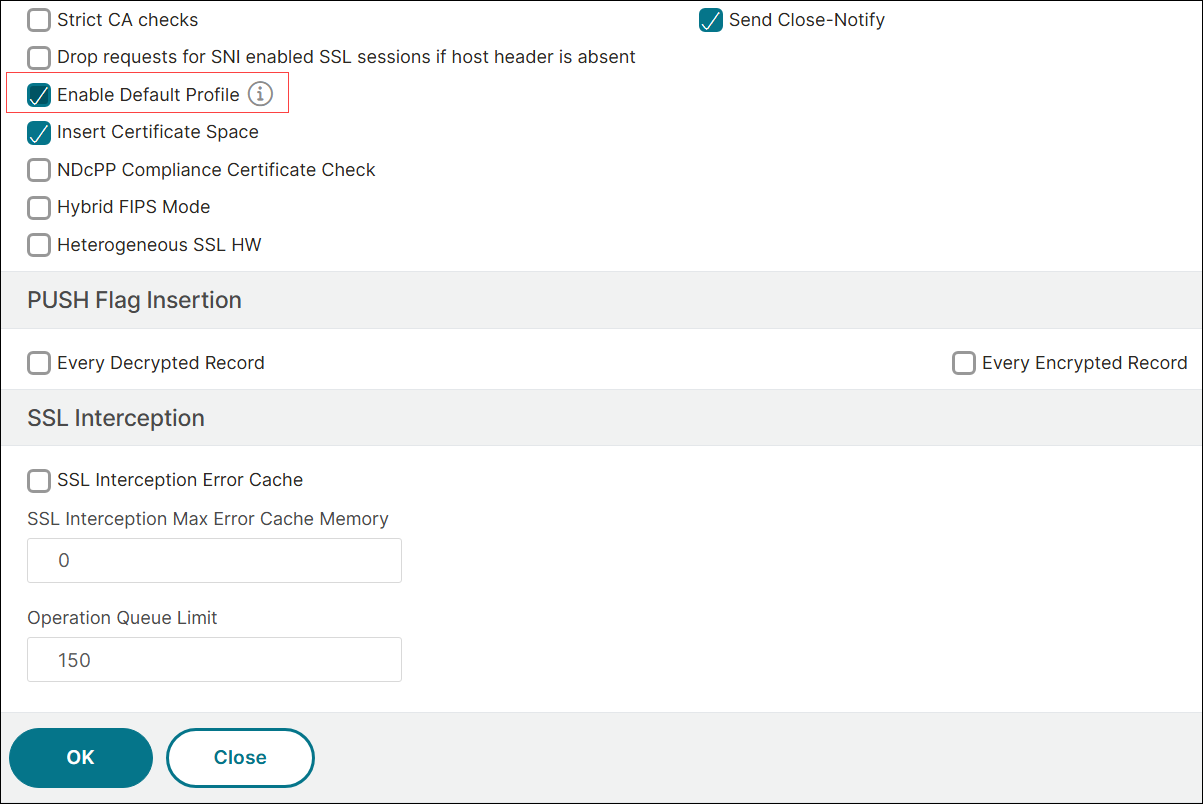
Navigate to Traffic Management > SSL > Settings > Change advanced SSL settings, select Enable Default Profile, and click OK.
-
Navigate to System > Profiles > SSL Profile.
-
Select ns_default_ssl_profile_backend and click the edit icon to edit the back-end profile.
-
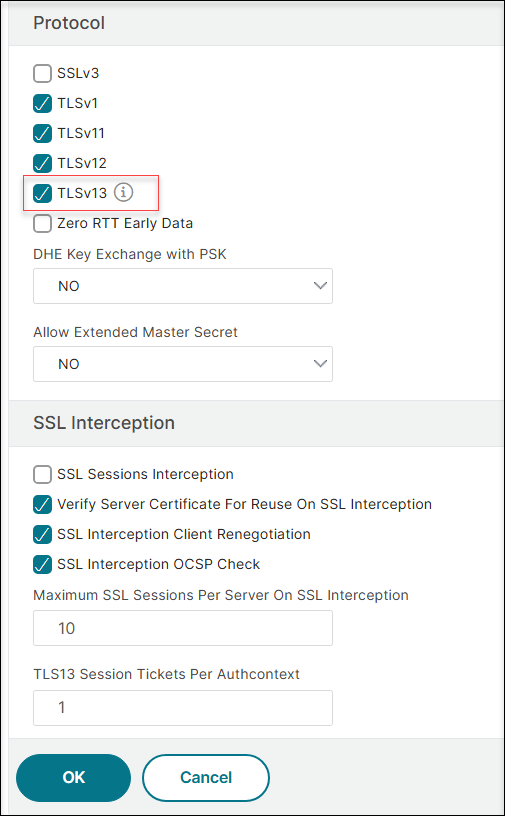
Under Protocol, select TLSv13 and click OK.
-
To enable TLS 1.3 protocol for front-end connections, either modify the default profile ns_default_ssl_profile_frontend or edit an existing SSL profile.
-
Under Protocol, select TLSv13 and click OK.
Enable TLS 1.3 protocol by using the CLI
To enable TLS 1.3 protocol on the default front-end and back-end profiles, at the command prompt, type:
set ssl parameter -defaultProfile enaBLED
 set ssl profile ns_default_ssl_profile_frontend -tls13 enaBLED
 set ssl profile ns_default_ssl_profile_backend -tls13 enaBLED
To create a new front-end profile and enable the TLS 1.3 protocol, at the command prompt, type:
add ssl profile <new SSL profile> -sslProfileType FrontEnd
 set ssl profile <name> -tls13 ENABLED
Compatibility matrix
For back-end connections
The following table provides a compatibility matrix for VDA platforms that support TLS 1.3 and TLS 1.3 with HDX Insight, ensuring secure end-to-end connections between NetScaler Gateway and VDA.
| Supported platforms | TLS 1.3 | TLS 1.3 with HDX Insight |
|---|---|---|
| Windows | 2407 and later | 2503 and later |
| Linux | 2411 and later | 2411 and later |
| macOS | 2507 and later | 2507 and later |
Starting from NetScaler Gateway release 14.1 build 56.x, VDA for macOS supports TLS 1.3 and TLS 1.3 with HDX Insight provided Secure HDX is configured on Delivery Controller or Citrix Studio. For details about configuring Secure HDX, see Secure HDX™.
For front-end connections
For Citrix Workspace app versions that support TLS 1.3, see Citrix Workspace app feature matrix - Security. TLS 1.3 encryption ensures secure end-to-end connections between NetScaler Gateway and Citrix Workspace app.
Limitations
-
In NetScaler Gateway release 13.1 and earlier, TLS 1.3 protocol is not supported for back-end connections from NetScaler Gateway to VDA.
-
TLS 1.3 protocol is supported only on Windows and Linux platforms of VDA versions 2503 and later.
-
TLS 1.3 is not supported on a NetScaler FIPS appliance.
-
TLS 1.3 handshake supports only RSA certificates with 1024-bit and larger keys.
Verify TLS 1.3 encryption status
Back-end connections
For back-end connections, check the status of TLS 1.3 encryption using the following command:
ctxsession -v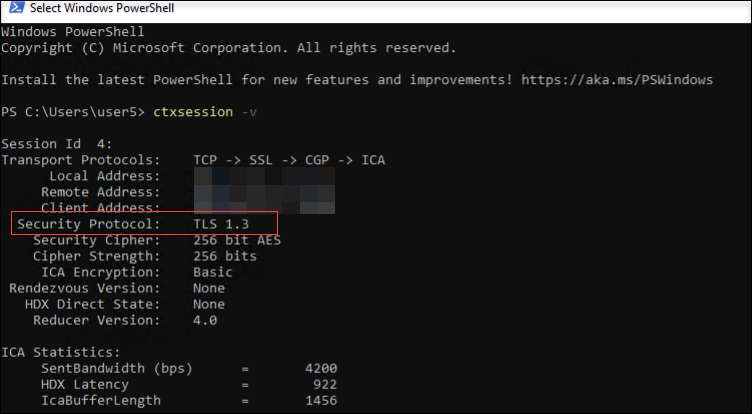
Front-end connections
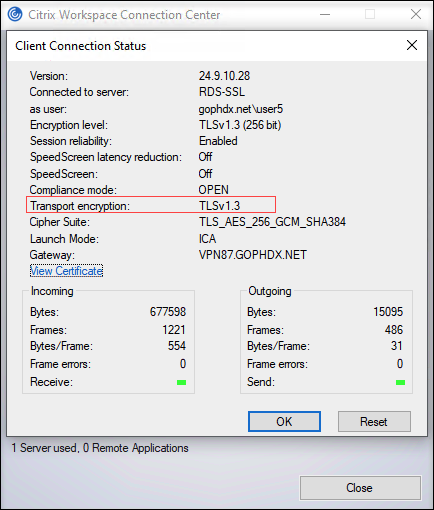
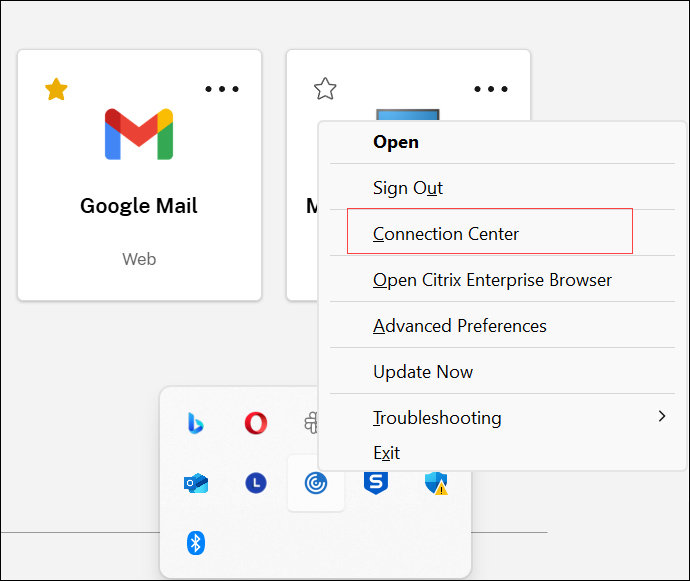
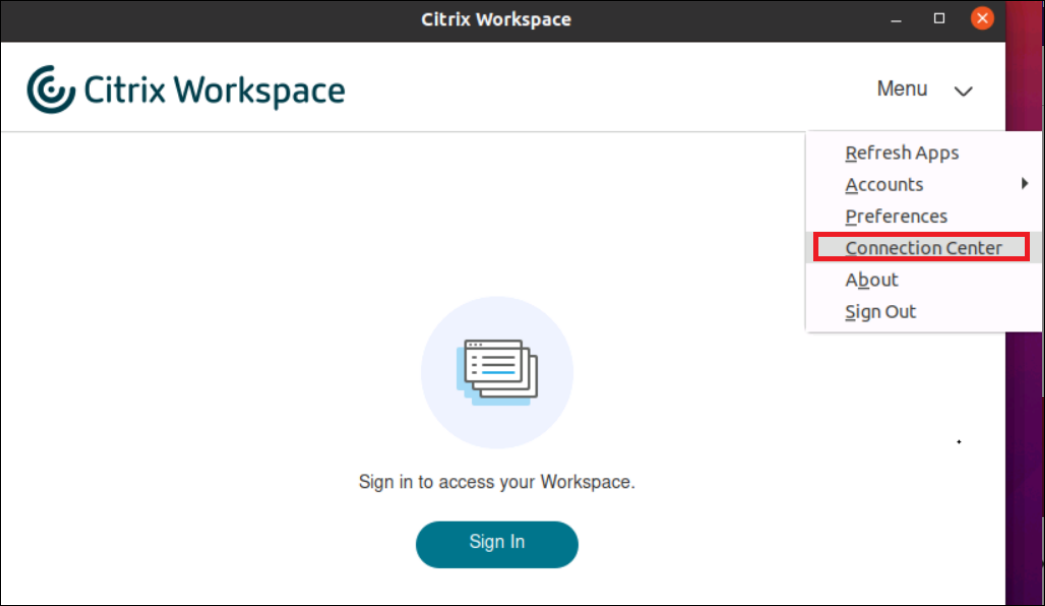
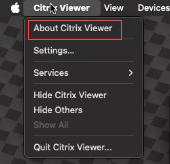
For front-end connections, verify the status of TLS 1.3 encryption in the Connection Center (for Windows and Linux) or Citrix Viewer (for macOS).
Citrix Workspace™ app for Windows
-
Right-click the Citrix Workspace app icon in the notification area.
-
Navigate to Connection Center > Preferences.
-
Verify the encryption status in the Client Connection Status screen that appears.
Citrix Workspace app for Linux
-
Navigate to Menu > Connection Center in the Citrix Workspace app. The active sessions are listed in the Connection Center.
-
Select the required session and verify the encryption status in the Server Properties screen that appears.
Citrix Workspace app for macOS
-
Navigate to Citrix Viewer > About Citrix Viewer.
-
Verify the encryption status in the Citrix Viewer screen that appears.
References
For more information on the TLS 1.3 protocol, see Support for TLS 1.3 protocol.