
Create and apply web links
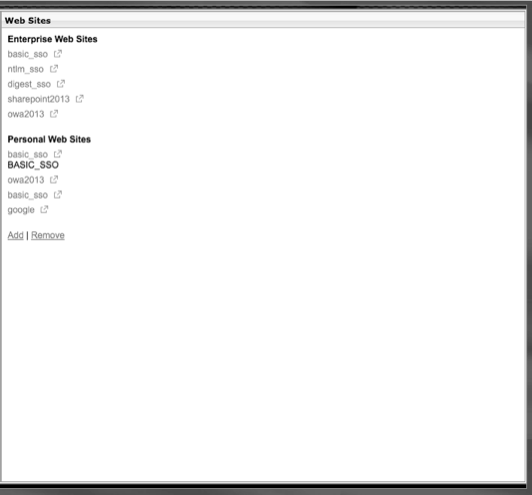
You can configure the Access Interface to display a set of links to internal resources that are available to users. Creating these links requires that you first define the links as resources. Then, you bind them to a user, group, virtual server, or globally to make them active in the Access Interface. The links you create appear on the Web Sites panes under Enterprise Web Sites.
Important:
From NetScaler release 13.0 build 64.xx onwards, file shares through NetScaler Gateway are not supported.
Creating Enterprise bookmarks
To create an Access Interface link in a session policy
-
In the configuration utility, on the Configuration tab, in the navigation pane, expand NetScaler Gateway > Resources and then click Portal Bookmarks.
-
In the details pane, click Add.
-
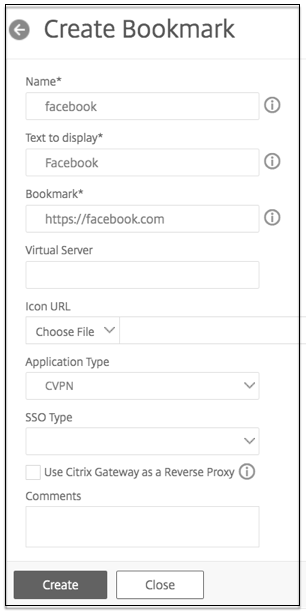
In Name, type a name for the bookmark.
-
In Text to display, type the description of the link. The description appears in the Access Interface.
-
In Bookmark, type the web address of the application.
-
In Virtual Server, type the name of the associated load balancing/content switching virtual server. This field is optional.
-
In Icon URL, the icons uploaded are supported for all themes except the default theme. The maximum recommended size is 70x70 pixels. We recommend that you use transparent images. This field is optional.
-
In Application Type, select the type of application (VPN, clientless VPN, or SaaS) that the URL represents. This field is optional.
-
In SSO Type, select the SSO type that you want to configure for the bookmark. When SSO is configured, users can access the applications without having to enter their credentials in the subsequent logons. The following SSO types are supported:
-
Unified Gateway: This SSO configuration allows secure remote access to multiple resources of an application through a single URL.
-
Self-authentication: In this SSO configuration, NetScaler Gateway users are prompted to provide the login credentials to access the application.
-
SAML-based authentication: In this SSO configuration, NetScaler Gateway uses an IdP to validate the user details, generates a SAML assertion, and sends it to the SP. If the validation passes, the SSO is successful.
Note:If you enable clientless access, you can make sure that requests to websites go through NetScaler Gateway. For example, you added a bookmark for Google. Select the Use NetScaler Gateway as a reverse proxy checkbox. When you select this checkbox, website requests go from the user device to NetScaler Gateway and then to the website. When you clear the checkbox, requests go from the user device to the website. This checkbox is only available if you enable clientless access. -
-
Click Create and then click Close.
To bind an Access Interface link
You can bind Access Interface links to the following locations:
-
Users
-
Groups
-
Virtual servers
After you save the configuration, the links are available to users in the Access Interface on the Home tab, which is the first page that users see after they successfully log on.
-
In the configuration utility, in the navigation pane, do one of the following:
-
Expand NetScaler Gateway User Administration and then click AAA Users.
-
Expand NetScaler Gateway User Administration and then click AAA Groups.
-
Expand NetScaler Gateway and then click Virtual Servers.
-
-
In the details pane, do one of the following:
-
Select a user and then click Open.
-
Select a group and then click Open.
-
Select a virtual server and then click Open.
-
-
In the dialog box, click the Bookmarks tab.
-
Under Available Bookmarks, select one or more bookmarks, click the right arrow to move the bookmarks under Configured Bookmarks and then OK.
To bind bookmarks globally by using the GUI
-
On the Configuration tab, in the navigation pane, expand NetScaler Gateway and then click Global Settings.
-
In the details pane, under Bookmarks, click Create links to the HTTP and Windows File Share applications that you want to make accessible on the NetScaler Gateway portal page.
-
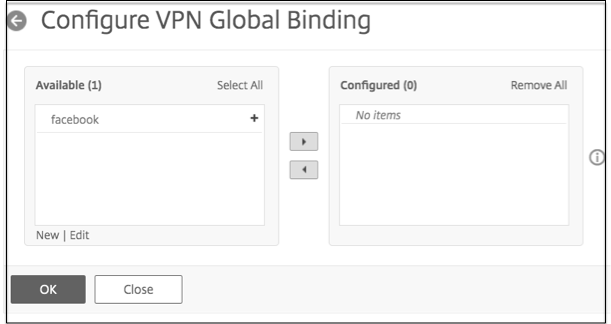
In the Configure VPN Global Binding* dialog box, click Add.
-
Under Available, select one or more bookmarks, click the right arrow to move the bookmarks under Configured and then OK.
To add an Enterprise bookmark by using the CLI
At the command prompt, type:
add vpn url <urlName> <linkName> <actualURL> [-ssotype <ssotype>]
Example:
Web bookmark
add vpn url google google "https://www.google.com"
To bind an Enterprise bookmark by using the CLI
You can bind Enterprise bookmarks to user, group, virtual server, and global level.
bind aaa user <userName> -urlName <string>
 bind aaa group <groupName> -urlName <string>
 bind vpn vserver <vserverName> -urlName <string>
 bind vpn global –urlName <string>
Example:
bind vpn global -urlName google
Creating Personal Bookmarks
You can create personal websites from the VPN virtual server only. There is no NetScaler Gateway admin GUI for adding personal bookmarks.
-
Log on to a VPN virtual server.
-
Click Network Access or Clientless Access to add a bookmark.
-
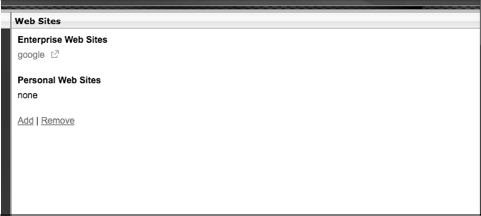
Click Add.
-
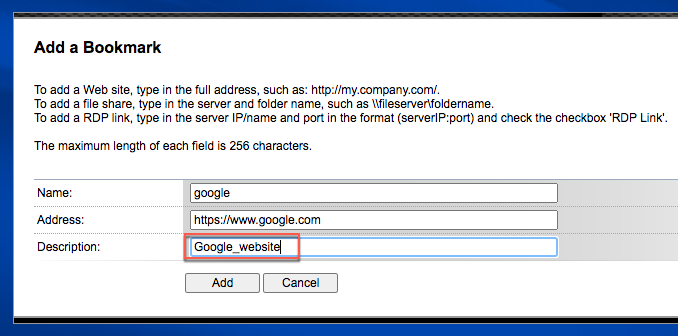
Enter the bookmark details such as website name, address, and description.
-
Click Add.
The websites that you added appear under the respective tabs.
Configure user name tokens in bookmarks
You can configure bookmark and file share URLs using a special token, %
username%. When users log on, the token is replaced with each users' logon name. For example, you create a bookmark for an employee named Jack for a folder as \\\\EmployeeServer\\%username%\\. When Jack logs on, the file share URL is mapped to \\\\EmployeeServer\\Jack\\. When you configure user name tokens in bookmarks, keep the following situations in mind:
-
If you are using one authentication type, the user name replaces the token %
username%. -
If you are using two-factor authentication, the user name from the primary authentication type is used to replace the %
username% token. -
If you are using client certificate authentication, the user name field in the client certificate authentication profile is used to replace the %
username% token.