
Initial configuration
Note:
This section does not apply to the SDX 9200 platform. For information specific to the SDX 9200, see NetScaler SDX 9200 platform.
After you have installed your appliance in a rack, you are ready to perform the initial configuration. To perform the initial configuration, you can use the Management Service user interface or the serial console. You can access the Management Service user interface from any computer that is on the same network as the new SDX appliance. If you do not have a computer on the same network, use the serial console to perform the initial configuration of the SDX appliance. Citrix recommends that, when you complete the initial configuration, you change the root-user password. For information about changing the root-user password, see Configuring Authentication and Authorization Settings.
Determine the following information for performing the initial configuration.
-
NetScaler SDX IP address and subnet mask: The management IP address and the mask used to define the subnet in which the SDX appliance is located. This IP address is used to access the NetScaler SDX Management Service user interface.
-
Citrix Hypervisor™ IP address: The IP address of the Citrix Hypervisor.
-
Default gateway: The IP address of the router that forwards traffic out of the appliance's subnet. The default gateway must be in the same subnet as the NSIP address.
-
Root password: The root user has full administrative privileges on the appliance. The root password is used to authenticate the root user. Change this password during the initial configuration of the appliance.
This topic includes the following sections:
-
Initial Configuration through the Management Service User Interface
-
Initial Configuration through the Serial Console
-
Changing the Password of the Default User Account
Initial configuration through the Management Service user interface
To set up the appliance by using the Management Service user interface, connect a workstation or laptop to the same network as the appliance.
To configure the NetScaler SDX appliance by using the Management Service user interface
-
Connect the NetScaler SDX appliance to a management workstation or network by using interface 0/1.
-
Open a browser and type:
<http://192.168.100.1>
Note: The NetScaler SDX Management Service is preconfigured with the IP address 192.168.100.1 and the Citrix Hypervisor is preconfigured with the IP address 192.168.100.2.
-
In User Name, type
nsroot. In Password, if the earlier default password does not work, try typing the serial number of the appliance. The serial number bar code is available at the back of the appliance. Citrix recommends that you change the password after the first logon. For information about changing the password, see Change the administrative password. -
In the navigation pane, click System.
-
In the details pane, under Setup Appliance, click Network Configuration.
-
In the Network Configuration page, do the following:
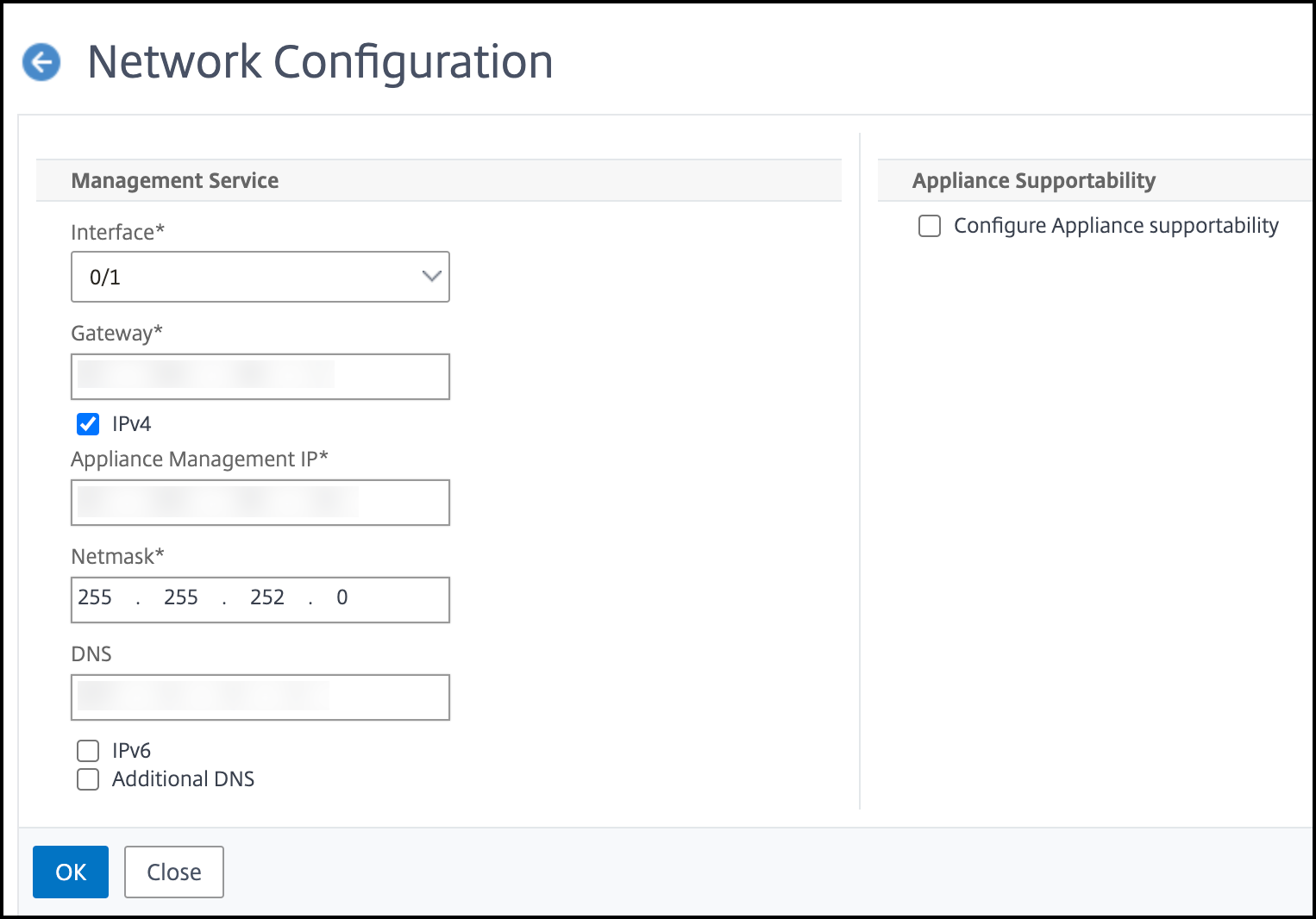
a. In the Interface field, select the management interface that connects the appliance to a management workstation or network. Possible values: 0/1, 0/2. Default: 0/1.
Note: If you create an LA channel of the management ports, you can assign only one IP address to the channel. In the Interface field, only the LA channel option appears instead of 0/1 and 0/2. Also, even if both ports are connected, the Management Service is active only on one port.
b. In the Appliance supportability IP field, enter the IP address of the Citrix Hypervisor.
c. In the Gateway field, enter the IP address of the router that forwards traffic out of the appliance's subnet.
d. In the DNS field, enter the IPv4 address of the primary DNS server.
Note: IPv6 addresses are not support for the primary DNS server.
e. Select the IPv4 checkbox if you want to use the IPv4 address for the Management Service and enter the details for the following parameters:
i. Appliance Management IP — The IPv4 address that is used to access the Management Service by using a Web browser.
ii. Netmask —The mask used to define the subnet in which the SDX appliance is located.
f. Select the IPv6 checkbox if you want to use the IPv6 address for the Management Service and enter the details for the following parameters:
i. Management Service IP Address —The IPv6 address that is used to access the Management Service by using a Web browser.
Note
The Citrix Hypervisor IP address and Management Service IP address must be in the same subnet.
ii. Gateway IPv6 Address — The IPv4 address of the router that forwards traffic out of the appliance's subnet.
g. Select the Additional DNS checkbox to add DNS server IP addresses as an extra DNS server apart from the primary DNS server. The IP addresses can be either IPv4 or IPv6.
Note:
Make sure that:
-
You add a DNS server IP address or two DNS server IP addresses as an extra DNS server.
-
You do not use the same DNS server IP address for the primary DNS server and extra DNS servers.
-
Cascading of DNS servers for authentication, authorization, and auditing in not supported. For authentication, authorization, and auditing of LDAP referrals, RADIUS, and TACACS, the primary DNS server configured for address resolution is always considered for authentication, authorization, and auditing.
8. Click OK, and then click Close.
To confirm that the appliance is configured correctly, ping the new Management Service IP address or use the new IP address to open the user interface in a browser.
Note:
Log on to the NetScaler SDX appliance using the CLI, make sure that the file
/etc/resolv.conf file included the added extra DNS server IP addresses. Also, the /mpsconfig/svm.conf file reflects the added extra DNS server IP addresses.
For example:
/mps/changenameserver.sh 127.0.0.1
 /mps/addnameserver.sh 1.2.3.4
Initial Configuration through the serial console
To perform the initial configuration of the SDX appliance from outside the L2 domain, connect to the console port of the appliance and follow the instructions carefully.
Note
The
networkconfig utility is available from build 72.5 and later.
To configure the NetScaler SDX appliance by using the serial console
-
Connect the console cable into your appliance.
-
Connect the other end of the cable to your computer and run the vt100 terminal emulation program of your choice.
-
For Microsoft Windows, you can use HyperTerminal.
-
For Apple Macintosh OSX, you can use the GUI-based Terminal program or the shell-based telnet client. Note: OSX is based on the FreeBSD UNIX platform. Most standard UNIX shell programs are available from the OSX command line.
-
To For UNIX-based workstations, you can use any supported terminal emulation program.
-
-
Press ENTER. The terminal screen displays the Logon prompt. Note: You might have to press ENTER two or three times, depending on which terminal program you are using.
-
At the prompt, type: ssh nsrecover@169.254.0.10 to log on to the Management Service. In Password, if the earlier default password does not work, try typing the serial number of the appliance. The serial number bar code is available at the back of the appliance. Citrix recommends that you change the password after the first logon. For information about changing the password, see Change the administrative password.
-
Type
shellto switch to the shell prompt and typenetworkconfig
You can now use the new IP address to log on to the Management Service user interface.
Change the password of the default user account
The default user account provides complete access to all features of the NetScaler SDX appliance. For security reasons, the administrator account must be used only when necessary, and only individuals whose duties require full access must know the password for the administrator account. Citrix recommends changing the administrator password frequently. If you lose the password, you can reset the password to the default by reverting the appliance settings to factory defaults, and you can then change the password.
You can change the password of the default user account in the Users pane. In the Users pane, you can view the following details:
-
NameLists the user accounts configured on the SDX appliance.
-
PermissionDisplays the permission level assigned to the user account.
Change the administrative password by using the GUI
-
Log on to the appliance by using the administrative credentials.
-
Navigate to System > User Administration > Users.
-
In the Users pane, click the default user account, and then click Modify.
-
In the Modify System User dialog box, in Password and Confirm Password, enter the password of your choice.
-
Click OK.
For more information about more NetScaler SDX software configuration, see NetScaler SDX software documentation.