
Install a certificate and key on older platforms using the LOM GUI
Citrix® recommends using HTTPS to access the LOM GUI. To use HTTPS, you must replace the default SSL certificate with one from a trusted certificate authority and upload a private key to the LOM GUI.
To encrypt SNMP alerts, set up an SSL certificate and private key. In the GUI, navigate to Configuration > SSL Certification and apply the SSL certificate and private key. See the NetScaler Secure Deployment Guide for more information about how to securely deploy the LOM in your network. To enable encryption and learn the security measures for LOM, see
<http://support.citrix.com/article/CTX200084>.
If you make a mistake, you must restore the BMC to the factory defaults to erase the certificate and key.
Note
The certificate file must contain only the certificate. The certificate and key must not be in the same file. Make sure that the certificate contains only the certificate and that the key file contains only the key.
To upload a trusted certificate and private key by using the LOM GUI
-
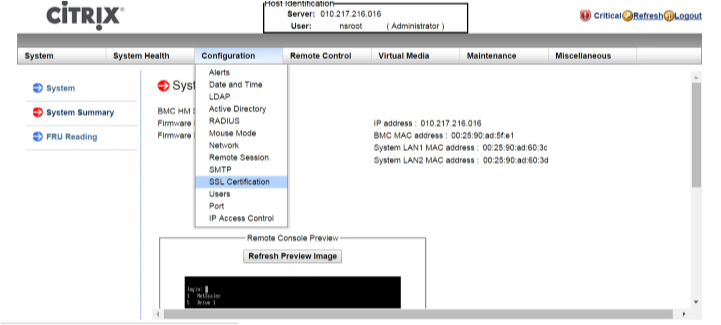
Navigate to Configuration > SSL Certification.
-
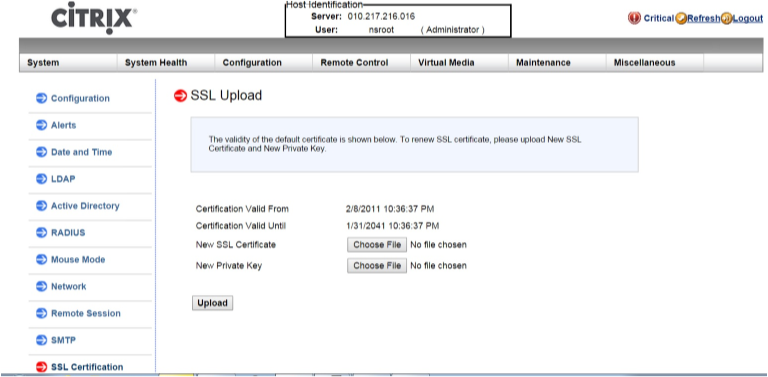
In the right pane, click the Choose File buttons to select a new SSL certificate and a new private key.
-
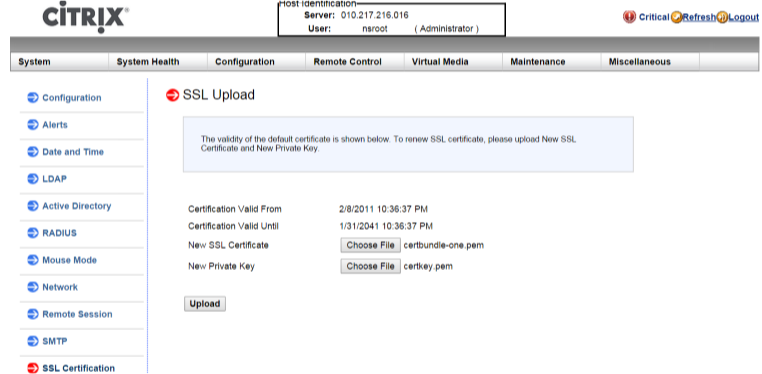
To verify that you have selected the correct certificate and private key, check the file names of the certificate and key. The file names appear next to the Choose File buttons.
-
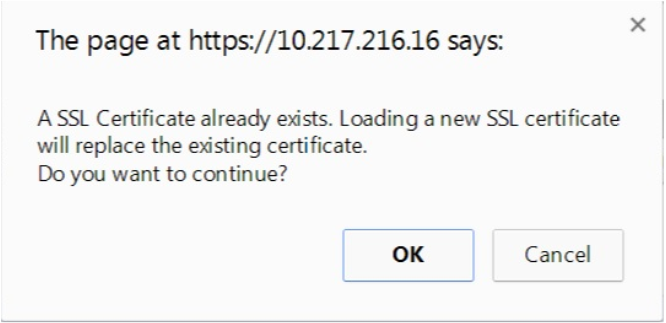
Click Upload. A message informs you that uploading a new SSL certificate replaces the existing (default) certificate.
-
Click OK.
-
When a message informs you that the certificate and key have been uploaded successfully, click OK to reset the device.
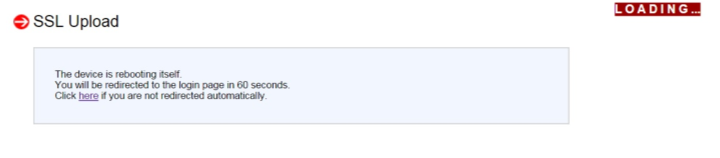
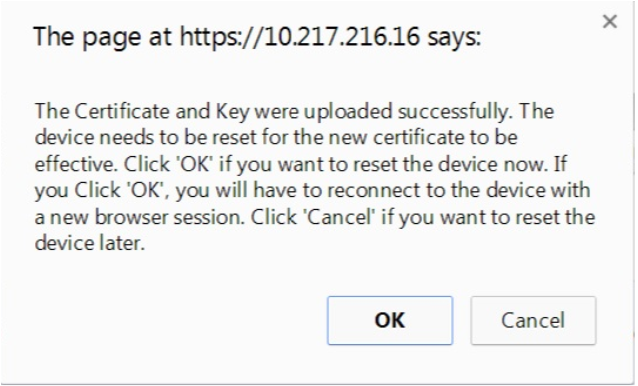 The reset takes approximately 60 seconds. You are then redirected to the logon page.
-
Log on to the LOM GUI by using your default credentials.NoteIf the certificate or key is invalid, the BMC reboots, tries the new settings, and reverts to using the previous settings.
-
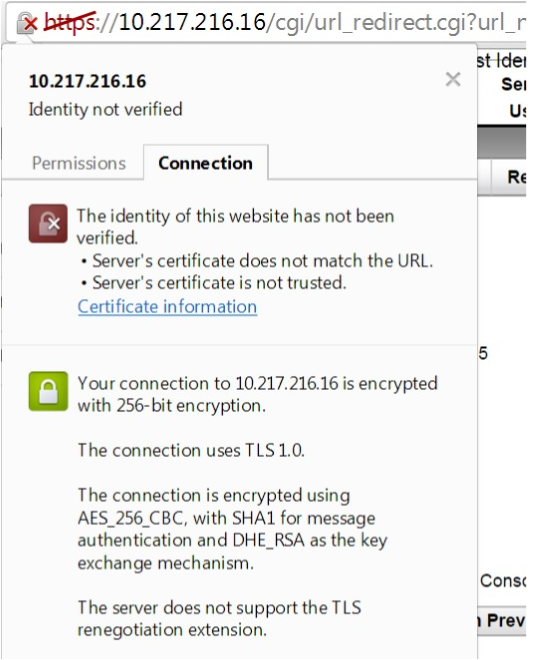
In the address bar, click the lock icon to display the connection tab, as shown in the following screen.
-
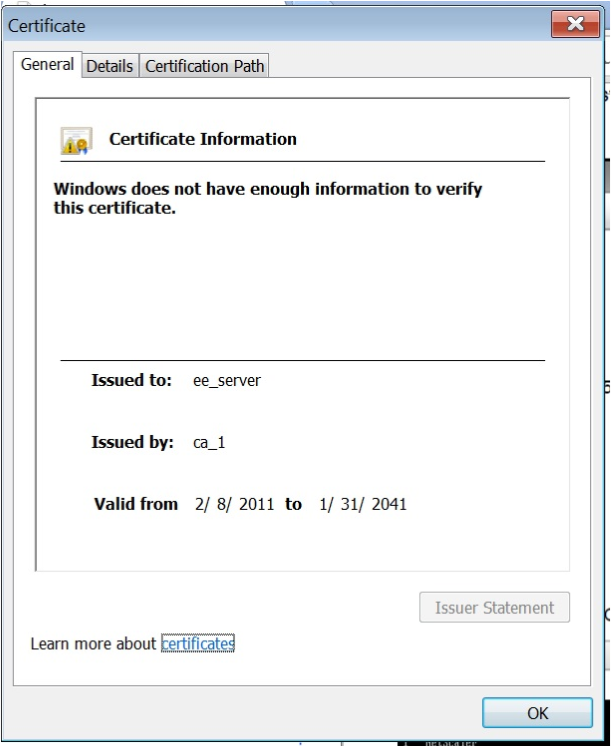
Click Certificate information to display details about the certificate that you uploaded.
 Note: For the best practices for LOM and NetScaler security, see
<http://support.citrix.com/article/CTX200084>.