
Deploy NetScaler Web App Firewall on AWS
The NetScaler Web App Firewall can be installed as either a Layer 3 network device or a Layer 2 network bridge between customer servers and customer users, usually behind the customer company’s router or firewall. NetScaler Web App Firewall must be installed in a location where it can intercept traffic between the web servers and the hub or switch through which users access those web servers. Users then configure the network to send requests to the Web Application Firewall instead of directly to their web servers, and responses to the Web Application Firewall instead of directly to their users. The Web Application Firewall filters that traffic before forwarding it to its final destination, using both its internal rule set and the user additions and modifications. It blocks or renders harmless any activity that it detects as harmful, and then forwards the remaining traffic to the web server. The preceding image provides an overview of the filtering process.
For more information, see How NetScaler Web App Firewall works.
Architecture for NetScaler Web App Firewall on AWS for production deployment
The image shows a virtual private cloud (VPC) with default parameters that builds a NetScaler Web App Firewall environment in the AWS Cloud.
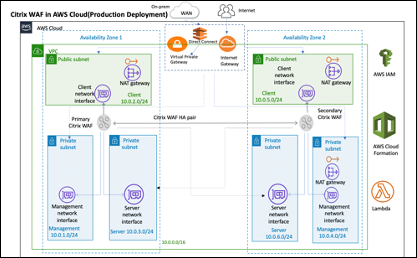
In a production deployment, the following parameters are set up for the NetScaler Web App Firewall environment:
-
This architecture assumes the use of an AWS CloudFormation Template.
-
A VPC that spans two Availability Zones, configured with two public and four private subnets, according to AWS best practices, to provide you with your own virtual network on AWS with a /16 Classless Inter-Domain Routing (CIDR) block (a network with 65,536 private IP addresses).
-
Two instances of NetScaler Web App Firewall (Primary and Secondary), one in each Availability Zone.
-
Three security groups, one for each network interface (Management, Client, Server), that acts as virtual firewalls to control the traffic for their associated instances.
-
Three subnets, for each instance- one for management, one for client, and one for back-end server.
-
An internet gateway attached to the VPC, and a Public Subnets route table which is associated with public subnets so as to allow access to the internet. This gateway is used by the Web App Firewall host to send and receive traffic. For more information on Internet Gateways, see: Internet Gateways.
-
5 Route tables-one public route table associated with client subnets of both primary and secondary Web App Firewall. The remaining 4 route tables link to each of the 4 private subnets (management and server-side subnets of primary and secondary Web App Firewall).
-
AWS Lambda in Web App Firewall takes care of the following:
-
Configuring two Web App Firewall in each availability zone of HA mode
-
Creating a sample Web App Firewall Profile and thus pushing this configuration with respect to Web App Firewall
-
-
AWS Identity and Access Management (IAM) to securely control access to AWS services and resources for your users. By default, the CloudFormation Template (CFT) creates the required IAM role. However, users can provide their own IAM role for NetScaler ADC instances.
-
In the public subnets, two managed Network Address Translation (NAT) gateways to allow outbound internet access for resources in public subnets.
Note:
The CFT Web App Firewall template that deploys the NetScaler Web App Firewall into an existing VPC skips the components marked by asterisks and prompts users for their existing VPC configuration.
Backend servers are not deployed by the CFT.
Cost and licensing
Users are responsible for the cost of the AWS services used while running AWS deployments. The AWS CloudFormation templates that can be used for this deployment include configuration parameters that users can customize as necessary. Some of those settings, such as instance type, affect the cost of deployment. For cost estimates, users should refer to the pricing pages for each AWS service they are using. Prices are subject to change.
A NetScaler Web App Firewall on AWS requires a license. To license NetScaler Web App Firewall, users must place the license key in an S3 bucket and specify its location when they launch the deployment.
Note:
When users elect the Bring your own license (BYOL) licensing model, they should ensure that they have an AppFlow feature enabled. For more information on BYOL licensing, see: AWS Marketplace/Citrix VPX - Customer Licensed.
The following licensing options are available for Citrix® ADC Web App Firewall running on AWS. Users can choose an AMI (Amazon Machine Image) based on a single factor such as throughput.
-
License model: Pay as You Go (PAYG, for the production licenses) or Bring Your Own License (BYOL, for the Customer Licensed AMI - Citrix ADC Pooled Capacity). For more information on Citrix ADC Pooled Capacity, see: Citrix ADC Pooled Capacity.
-
For BYOL, there are 3 licensing modes:
-
Configure NetScaler Pooled Capacity: Configure Citrix ADC Pooled Capacity
-
NetScaler VPX Check-in and Check-out Licensing (CICO): Citrix ADC VPX Check-in and Check-out Licensing
Tip:If users elect CICO Licensing with VPX-200, VPX-1000, VPX-3000, VPX-5000, or VPX-8000 application platform type, they should ensure that they have the same throughput license present in their NetScaler Console licensing server.-
NetScaler virtual CPU Licensing: NetScaler virtual CPU Licensing
-
-
Note:
If users want to dynamically modify the bandwidth of a VPX instance, they should elect a BYOL option, for example NetScaler pooled capacity where they can allocate the licenses from NetScaler Console, or they can check out the licenses from NetScaler according to the minimum and maximum capacity of the instance on demand and without a restart. A restart is required only if users want to change the license edition.
-
Throughput: 200 Mbps or 1 Gbps
-
Bundle: Premium
Deployment options
This deployment guide provides two deployment options:
-
The first option is to deploy using a Quick Start Guide format and the following options:
-
Deploy NetScaler Web App Firewall into a new VPC (end-to-end deployment). This option builds a new AWS environment consisting of the VPC, subnets, security groups, and other infrastructure components, and then deploys NetScaler Web App Firewall into this new VPC.
-
Deploy NetScaler Web App Firewall into an existing VPC. This option provisions NetScaler Web App Firewall in the user existing AWS infrastructure.
-
-
The second option is to deploy using Web App Firewall StyleBooks using NetScaler Console
AWS Quick Start
Step 1: Sign in to the user AWS account
-
Sign in to the user account at AWS: AWS with an IAM (Identity and Access Management) user role that has the necessary permissions to create an Amazon Account (if necessary) or sign in to an Amazon Account.
-
Use the region selector in the navigation bar to choose the AWS Region where users want to deploy High Availability across AWS Availability Zones.
-
Ensure that the user AWS account is configured correctly, refer to the Technical Requirements section of this document for more information.
Step 2: Subscribe to the NetScaler Web App Firewall AMI
-
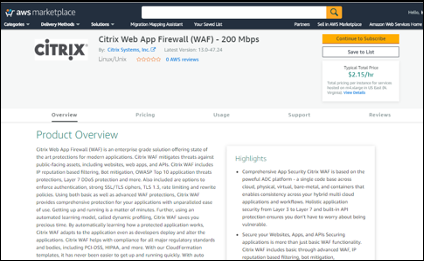
This deployment requires a subscription to the AMI for NetScaler Web App Firewall in the AWS Marketplace.
-
Sign in to the user AWS account.
-
Open the page for the NetScaler Web App Firewall offering by choosing one of the links in the following table.
-
When users launch the Quick Start Guide in to deploy NetScaler Web App Firewall in Step 3 below, they use the NetScaler Web App Firewall Image parameter to select the bundle and throughput option that matches their AMI subscription. The following list shows the AMI options and corresponding parameter settings. The VPX AMI instance requires a minimum of 2 virtual CPUs and 2 GB of memory.
-
Note:
To retrieve the AMI ID, refer to the NetScaler Products on AWS Marketplace page on GitHub: Citrix Products on AWS Marketplace.
-
AWS Marketplace AMI
-
NetScaler Web Application Firewall (Web App Firewall) - 200 Mbps: Citrix Web App Firewall (Web App Firewall) - 200 Mbps
-
NetScaler Web Application Firewall (Web App Firewall) - 1000 Mbps: Citrix Web App Firewall (Web App Firewall) - 1000 Mbps
-
-
On the AMI page, choose Continue to Subscribe.
-
Review the terms and conditions for software usage, and then choose Accept Terms.
 Note:Users receive a confirmation page, and an email confirmation is sent to the account owner. For detailed subscription instructions, see Getting Started in the AWS Marketplace Documentation: Getting Started.
 -
When the subscription process is complete, exit out of AWS Marketplace without further action. Do not provision the software from AWS Marketplace—users will deploy the AMI with the Quick Start Guide.
Step 3: Launch the AWS Quick Start
-
Sign in to the user AWS account, and choose one of the following options to launch the AWS CloudFormation template. For help with choosing an option, see deployment options earlier in this guide.
-
Deploy NetScaler VPX into a new VPC on AWS using one of the AWS CloudFormation Templates located here:
-
Important:
If users are deploying NetScaler Web App Firewall into an existing VPC, they must ensure that their VPC spans across two Availability Zones, with one public and two private subnets in each Availability Zone for the workload instances, and that the subnets are not shared. This deployment guide does not support shared subnets, see Working with Shared VPCs: Working with Shared VPCs. These subnets require NAT Gateways in their route tables to allow the instances to download packages and software without exposing them to the internet. For more information about NAT Gateways, see NAT Gateways. Configure the subnets so there is no overlapping of subnets.
Also, users should ensure that the domain name option in the DHCP options is configured as explained in the Amazon VPC documentation found here: DHCP Options Sets DHCP Options Sets. Users are prompted for their VPC settings when they launch the Quick Start Guide.
-
Each deployment takes about 15 minutes to complete.
-
Check the AWS Region that is displayed in the upper-right corner of the navigation bar, and change it if necessary. This is where the network infrastructure for Citrix Web App Firewall will be built. The template is launched in the US East (Ohio) Region by default.
Note:
This deployment includes NetScaler Web App Firewall, which isn’t currently supported in all AWS Regions. For a current list of supported Regions, see the AWS Service Endpoints: AWS Service Endpoints.
-
On the Select Template page, keep the default setting for the template URL, and then choose Next.
-
On the Specify Details page, specify the stack name as per user convenience. Review the parameters for the template. Provide values for the parameters that require input. For all other parameters, review the default settings and customize them as necessary.
-
In the following table, parameters are listed by category and described separately for the deployment option:
-
Parameters to deploy NetScaler Web App Firewall into a new or existing VPC (Deployment Option 1)
-
When users finish reviewing and customizing the parameters, they should choose Next.
Parameters to deploy NetScaler Web App Firewall into a new VPC
VPC network configuration
| Parameter label (name) | Default | Description |
|---|---|---|
| Primary Availability Zone (PrimaryAvailabilityZone) | Requires input | The Availability Zone for Primary NetScaler Web App Firewall deployment |
| Secondary Availability Zone (SecondaryAvailabilityZone) | Requires input | The Availability Zone for Secondary NetScaler Web App Firewall deployment |
| VPC CIDR (VPCCIDR) | 10.0.0.0/16 | The CIDR block for the VPC. Must be a valid IP CIDR range of the form x.x.x.x/x. |
| Remote SSH CIDR IP(Management) (RestrictedSSHCIDR) | Requires input | The IP address range that can SSH to the EC2 instance (port: 22). |
| For example Using 0.0.0.0/0, will enable all IP addresses to access the user instance using SSH or RDP. Note: Authorize only a specific IP address or range of addresses to access the user instance because it is unsafe to use it in production. | ||
| Remote HTTP CIDR IP(Client) (RestrictedWebAppCIDR) | 0.0.0.0/0 | The IP address range that can HTTP to the EC2 instance (port: 80) |
| Remote HTTP CIDR IP(Client) (RestrictedWebAppCIDR) | 0.0.0.0/0 | The IP address range that can HTTP to the EC2 instance (port: 80) |
| Primary Management Private Subnet CIDR (PrimaryManagementPrivateSubnetCIDR) | 10.0.1.0/24 | The CIDR block for Primary Management Subnet located in Availability Zone 1. |
| Primary Management Private IP (PrimaryManagementPrivateIP) | — | Private IP assigned to the Primary Management ENI (last octet has to be between 5 and 254) from the Primary Management Subnet CIDR. |
| Primary Client Public Subnet CIDR (PrimaryClientPublicSubnetCIDR) | 10.0.2.0/24 | The CIDR block for Primary Client Subnet located in Availability Zone 1. |
| Primary Client Private IP (PrimaryClientPrivateIP) | — | Private IP assigned to the Primary Client ENI (last octet has to be between 5 and 254) from Primary Client IP from the Primary Client Subnet CIDR. |
| Primary Server Private Subnet CIDR (PrimaryServerPrivateSubnetCIDR) | 10.0.3.0/24 | The CIDR block for Primary Server located in Availability Zone 1. |
| Primary Server Private IP (PrimaryServerPrivateIP) | — | Private IP assigned to the Primary Server ENI (last octet has to be between 5 and 254) from the Primary Server Subnet CIDR. |
| Secondary Management Private Subnet CIDR (SecondaryManagementPrivateSubnetCIDR) | 10.0.4.0/24 | The CIDR block for Secondary Management Subnet located in Availability Zone 2. |
| Secondary Management Private IP (SecondaryManagementPrivateIP) | — | Private IP assigned to the Secondary Management ENI (last octet has to be between 5 and 254). It would allocate Secondary Management IP from the Secondary Management Subnet CIDR. |
| Secondary Client Public Subnet CIDR (SecondaryClientPublicSubnetCIDR) | 10.0.5.0/24 | The CIDR block for Secondary Client Subnet located in Availability Zone 2. |
| Secondary Client Private IP (SecondaryClientPrivateIP) | — | Private IP assigned to the Secondary Client ENI (last octet has to be between 5 and 254). It would allocate Secondary Client IP from the Secondary Client Subnet CIDR. |
| Secondary Server Private Subnet CIDR (SecondaryServerPrivateSubnetCIDR) | 10.0.6.0/24 | The CIDR block for Secondary Server Subnet located in Availability Zone 2. |
| Secondary Server Private IP (SecondaryServerPrivateIP) | — | Private IP assigned to the Secondary Server ENI (last octet has to be between 5 and 254). It would allocate Secondary Server IP from the Secondary Server Subnet CIDR. |
VPC Tenancy attribute (VPCTenancy) |
default | The allowed tenancy of instances launched into the VPC. Choose Dedicated tenancy to launch EC2 instances dedicated to a single customer. |
Bastion host configuration
| Parameter label (name) | Default | Description |
|---|---|---|
| Bastion Host required (LinuxBastionHostEIP) | No | By default, no bastion host will be configured. But if users want to opt for sandbox deployment select yes from the menu which would deploy a Linux Bastion Host in the public subnet with an EIP that would give users access to the components in the private and public subnet. |
NetScaler Web App Firewall Configuration
| Parameter label (name) | Default | Description |
|---|---|---|
| Key pair name (KeyPairName) | Requires input | A public/private key pair, which allows users to connect securely to the user instance after it launches. This is the key pair users created in their preferred AWS Region; see the Technical Requirements section. |
| NetScaler Instance Type (CitrixADCInstanceType) | m4.xlarge | The EC2 instance type to use for the ADC instances. Ensure that the instance type opted for aligns with the instance types available in the AWS marketplace or else the CFT might fail. |
| NetScaler ADC AMI ID (CitrixADCImageID) | — | The AWS Marketplace AMI to be used for NetScaler Web App Firewall deployment. This must match the AMI users subscribed to in step 2. |
NetScaler ADC VPX IAM role (iam:GetRole) |
— | This Template: AWS-Quickstart/Quickstart-Citrix-ADC-VPX/Templates creates the IAM role and the Instance Profile required for NetScaler VPX. If left empty, CFT creates the required IAM role. |
| Client PublicIP(EIP) (ClientPublicEIP) | No | Select "Yes" if users want to assign a public EIP to the user Client Network interface. Otherwise, even after the deployment, users still have the option of assigning it later if necessary. |
Pooled Licensing configuration
| Parameter label (name) | Default | Description |
|---|---|---|
| NetScaler Console Pooled Licensing | No | If choosing the BYOL option for licensing, select yes from the list. This allows users to upload their already purchased licenses. Before users begin, they should Configure NetScaler ADC Pooled Capacity to ensure NetScaler Console pooled licensing is available, see Configure NetScalerPooled Capacity |
| Reachable NetScaler Console / NetScaler Console Agent IP | Requires input | For the Customer Licensed option, whether users deploy NetScaler Console on-prem or an agent in the cloud, make sure to have a reachable NetScaler Console IP which would then be used as an input parameter. |
| Licensing Mode | Optional |
Users can choose from the 3 licensing modes:
|
| License Bandwidth in Mbps | 0 Mbps | Only if the licensing mode is Pooled-Licensing, then this field comes into the picture. It allocates an initial bandwidth of the license in Mbps to be allocated after BYOL ADCs are created. It should be a multiple of 10 Mbps. |
| License Edition | Premium | License Edition for Pooled Capacity Licensing Mode is Premium. |
| Appliance Platform Type | Optional | Choose the required Appliance Platform Type, only if users opt for CICO licensing mode. Users get the options listed: VPX-200, VPX-1000, VPX-3000, VPX-5000, VPX-8000. |
| License Edition | Premium | License Edition for vCPU based Licensing is Premium. |
AWS Quick Start configuration
Note:
We recommend that users keep the default settings for the following two parameters, unless they are customizing the Quick Start Guide templates for their own deployment projects. Changing the settings of these parameters will automatically update code references to point to a new Quick Start Guide location. For more details, see the AWS Quick Start Guide Contributor’s Guide located here: AWS Quick Starts/Option 1 - Adopt a Quick Start.
| Parameter label (name) | Default | Description |
|---|---|---|
| Quick Start Guide S3 bucket name (QSS3BucketName) | aws-quickstart |
The S3 bucket users created for their copy of Quick Start Guide assets, if users decide to customize or extend the Quick Start Guide for their own use. The bucket name can include numbers, lowercase letters, uppercase letters, and hyphens, but should not start or end with a hyphen. |
| Quick Start Guide S3 key prefix (QSS3KeyPrefix) | quickstart-citrix-adc-vpx/ | The S3 key name prefix, from the Object Key and Metadata: Object Key and Metadata, is used to simulate a folder for the user copy of Quick Start Guide assets, if users decide to customize or extend the Quick Start Guide for their own use. This prefix can include numbers, lowercase letters, uppercase letters, hyphens, and forward slashes. |
-
On the Options page, users can specify a Resource Tag or key-value pair for resources in your stack and set advanced options. For more information on Resource Tags, see Resource Tag. For more information on setting AWS CloudFormation Stack Options, see Setting AWS CloudFormation Stack Options. When users are done, they should choose Next.
-
On the Review page, review and confirm the template settings. Under Capabilities, select the two check boxes to acknowledge that the template creates IAM resources and that it might require the capability to auto-expand macros.
-
Choose Create to deploy the stack.
-
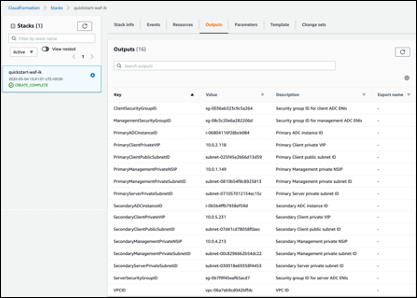
Monitor the status of the stack. When the status is CREATE_COMPLETE, the NetScaler Web App Firewall instance is ready.
-
Use the URLs displayed in the Outputs tab for the stack to view the resources that were created.
Step 4: Test the deployment
We refer to the instances in this deployment as primary and secondary. Each instance has different IP addresses associated with it. When the Quick Start has been deployed successfully, traffic goes through the primary NetScaler Web App Firewall instance configured in Availability Zone 1. During failover conditions, when the primary instance does not respond to client requests, the secondary Web App Firewall instance takes over.
The Elastic IP address of the virtual IP address of the primary instance migrates to the secondary instance, which takes over as the new primary instance.
In the failover process, NetScaler Web App Firewall does the following:
-
NetScaler Web App Firewall checks the virtual servers that have IP sets attached to them.
-
NetScaler Web App Firewall finds the IP address that has an associated public IP address from the two IP addresses that the virtual server is listening on. One that is directly attached to the virtual server, and one that is attached through the IP set.
-
NetScaler Web App Firewall reassociates the public Elastic IP address to the private IP address that belongs to the new primary virtual IP address.
To validate the deployment, perform the following:
-
Connect to the primary instance
For example, with a proxy server, jump host (a Linux/Windows/FW instance running in AWS, or the bastion host), or another device reachable to that VPC or a Direct Connect if dealing with on-prem connectivity.
-
Perform a trigger action to force failover and check whether the secondary instance takes over.
Tip:
To further validate the configuration with respect to NetScaler Web App Firewall, run the following command after connecting to the Primary NetScaler Web App Firewall instance:
Sh appfw profile QS-Profile
Connect to NetScaler Web App Firewall HA pair using bastion host
If users are opting for Sandbox deployment (for example, as part of CFT, users opt for configuring a Bastion Host), a Linux bastion host deployed in a public subnet will be configured to access the Web App Firewall interfaces.
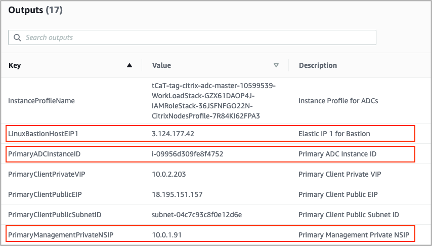
In the AWS CloudFormation console, which is accessed by signing in here: Sign in, choose the master stack, and on the Outputs tab, find the value of LinuxBastionHostEIP1.
-
PrivateManagementPrivateNSIP and PrimaryADCInstanceID key’s value to be used in the later steps to SSH into the ADC.
-
Choose Services.
-
On the Compute tab, select EC2.
-
Under Resources, choose Running Instances.
-
On the Description tab of the primary Web App Firewall instance, note the IPv4 public IP address. Users need that IP address to construct the SSH command.
-
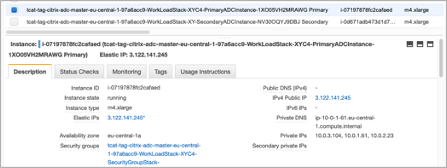
-
To store the key in the user keychain, run the command
ssh-add -K [your-key-pair].pem
On Linux, users might need to omit the -K flag.
-
Log in to the bastion host using the following command, using the value for LinuxBastionHostEIP1 that users noted in step 1.
ssh -A ubuntu@[LinuxBastionHostEIP1]
-
From the bastion host, users can connect to the primary Web App Firewall instance by using SSH.
ssh nsroot@[Primary Management Private NSIP]
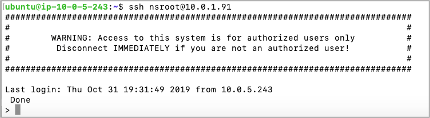
Now users are connected to the primary NetScaler Web App Firewall instance. To see the available commands, users can run the help command. To view the current HA configuration, users can run the show HA node command.
NetScaler Console
NetScaler Application Delivery Management Service provides an easy and scalable solution to manage NetScaler deployments that include NetScaler MPX, NetScaler VPX, NetScaler Gateway, NetScaler Secure Web Gateway, NetScaler SDX, NetScaler ADC CPX, and NetScaler SD-WAN appliances that are deployed on-premises or on the cloud.
The NetScaler Console Service documentation includes information about how to get started with the service, a list of features supported on the service, and configuration specific to this service solution.
For more information, see NetScaler Console Overview.
Deploying NetScaler VPX instances on AWS using NetScaler Console
When customers move their applications to the cloud, the components that are part of their application increase, become more distributed, and need to be dynamically managed.
For more information, see Provisioning NetScaler VPX Instances on AWS.
NetScaler Web App Firewall and OWASP Top 10 – 2017
The Open Web Application Security Project: OWASP released the OWASP Top 10 for 2017 for web application security. This list documents the most common web application vulnerabilities and is a great starting point to evaluate web security. Here we detail how to configure the NetScaler Web App Firewall (Web App Firewall) to mitigate these flaws. Web App Firewall is available as an integrated module in the NetScaler (Premium Edition) as well as a complete range of appliances.
The full OWASP Top 10 document is available at OWASP Top Ten.
Signatures provide the following deployment options to help users to optimize the protection of user applications:
-
Negative Security Model: With the negative security model, users employ a rich set of preconfigured signature rules to apply the power of pattern matching to detect attacks and protect against application vulnerabilities. Users block only what they don’t want and allow the rest. Users can add their own signature rules, based on the specific security needs of user applications, to design their own customized security solutions.
-
Hybrid security Model: In addition to using signatures, users can use positive security checks to create a configuration ideally suited for user applications. Use signatures to block what users don’t want, and use positive security checks to enforce what is allowed.
To protect user applications by using signatures, users must configure one or more profiles to use their signatures object. In a hybrid security configuration, the SQL injection and cross-site scripting patterns, and the SQL transformation rules, in the user signatures object are used not only by the signature rules, but also by the positive security checks configured in the Web Application Firewall profile that is using the signatures object.
The Web Application Firewall examines the traffic to user protected websites and web services to detect traffic that matches a signature. A match is triggered only when every pattern in the rule matches the traffic. When a match occurs, the specified actions for the rule are invoked. Users can display an error page or error object when a request is blocked. Log messages can help users to identify attacks being launched against user applications. If users enable statistics, the Web Application Firewall maintains data about requests that match a Web Application Firewall signature or security check.
If the traffic matches both a signature and a positive security check, the more restrictive of the two actions are enforced. For example, if a request matches a signature rule for which the block action is disabled, but the request also matches an SQL Injection positive security check for which the action is block, the request is blocked. In this case, the signature violation might be logged as , although the request is blocked by the SQL injection check.
Customization: If necessary, users can add their own rules to a signatures object. Users can also customize the SQL/XSS patterns. The option to add their own signature rules, based on the specific security needs of user applications, gives users the flexibility to design their own customized security solutions. Users block only what they don’t want and allow the rest. A specific fast-match pattern in a specified location can significantly reduce processing overhead to optimize performance. Users can add, modify, or remove SQL injection and cross-site scripting patterns. Built-in RegEx and expression editors help users configure user patterns and verify their accuracy.
NetScaler Web App Firewall
Web App Firewall is an enterprise grade solution offering state of the art protections for modern applications. NetScaler Web App Firewall mitigates threats against public-facing assets, including websites, web applications, and APIs. NetScaler Web App Firewall includes IP reputation-based filtering, Bot mitigation, OWASP Top 10 application threats protections, Layer 7 DDoS protection and more. Also included are options to enforce authentication, strong SSL/TLS ciphers, TLS 1.3, rate limiting and rewrite policies. Using both basic and advanced Web App Firewall protections, NetScaler Web App Firewall provides comprehensive protection for your applications with unparalleled ease of use. Getting up and running is a matter of minutes. Further, using an automated learning model, called dynamic profiling, NetScaler Web App Firewall saves users precious time. By automatically learning how a protected application works, Web App Firewall adapts to the application even as developers deploy and alter the applications. NetScaler Web App Firewall helps with compliance for all major regulatory standards and bodies, including PCI-DSS, HIPAA, and more. With our CloudFormation templates, it has never been easier to get up and running quickly. With auto scaling, users can rest assured that their applications remain protected even as their traffic scales up.
Web App Firewall deployment strategy
The first step to deploying the web application firewall is to evaluate which applications or specific data need maximum security protection, which ones are less vulnerable, and the ones for which security inspection can safely be bypassed. This helps users in coming up with an optimal configuration, and in designing appropriate policies and bind points to segregate the traffic. For example, users might want to configure a policy to bypass security inspection of requests for static web content, such as images, MP3 files, and movies, and configure another policy to apply advanced security checks to requests for dynamic content. Users can use multiple policies and profiles to protect different contents of the same application.
The next step is to baseline the deployment. Start by creating a virtual server and run test traffic through it to get an idea of the rate and amount of traffic flowing through the user system.
Then, deploy the Web App Firewall. Use NetScaler console and the Web App Firewall StyleBook to configure the Web App Firewall. See the StyleBook section below in this guide for details.
After the Web App Firewall is deployed and configured with the Web App Firewall StyleBook, a useful next step would be to implement the NetScaler ADC Web App Firewall and OWASP Top 10.
Finally, three of the Web App Firewall protections are especially effective against common types of Web attacks, and are therefore more commonly used than any of the others. Thus, they should be implemented in the initial deployment.
NetScaler Console
NetScaler console provides a scalable solution to manage NetScaler ADC deployments that include NetScaler ADC MPX, NetScaler ADC VPX, NetScaler Gateway, NetScaler Secure Web Gateway, NetScaler ADC SDX, NetScaler ADC CPX, and NetScaler SD-WAN appliances that are deployed on-premises or on the cloud.
NetScaler console application analytics and management features
The features that are supported on the NetScaler console are key to the NetScaler Console role in App Security.
For more infomation on features, see Features and solutions.
Prerequisites
Before attempting to create a VPX instance in AWS, users should ensure that prerequisites are met. For more information, see Prerequisites:
Limitations and usage guidelines
The limitations and usage guidelines that are availabel at Limitations and usage guidelines apply when deploying a Citrix ADC VPX instance on AWS.
Technical requirements
Before users launch the Quick Start Guide to begin a deployment, the user account must be configured as specified in the following resource table. Otherwise, the deployment might fail.
Resources
If necessary, sign in to the user amazon account and request service limit increases for the following resources here: AWS/Sign in. You might need to do this if you already have an existing deployment that uses these resources, and you think you might exceed the default limits with this deployment. For default limits, see the AWS Service Quotas in the AWS documentation: AWS Service Quotas.
The AWS Trusted Advisor, found here: AWS/Sign in, offers a service limits check that displays usage and limits for some aspects of some services.
| Resource | This deployment uses |
|---|---|
| VPCs | 1 |
| Elastic IP addresses | 0/1(for Bastion host) |
| IAM security groups | 3 |
| IAM roles | 1 |
| Subnets | 6(3/Availability zone) |
| Internet Gateway | 1 |
| Route Tables | 5 |
| Web App Firewall VPX instances | 2 |
| Bastion host | 0/1 |
| NAT gateway | 2 |
Regions
NetScaler Web App Firewall on AWS isn’t currently supported in all AWS Regions. For a current list of supported Regions, see AWS Service Endpoints in the AWS documentation: AWS Service Endpoints.
For more information on AWS regions and why cloud infrastructure matters, see: Global Infrastructure.
Key Pair
Make sure that at least one Amazon EC2 key pair exists in the user AWS account in the Region where users are planning to deploy using the Quick Start Guide. Make note of the key pair name. Users are prompted for this information during deployment. To create a key pair, follow the instructions for Amazon EC2 Key Pairs and Linux Instances in the AWS documentation: Amazon EC2 Key Pairs and Linux Instances.
If users are deploying the Quick Start Guide for testing or proof-of-concept purposes, we recommend that they create a new key pair instead of specifying a key pair that’s already being used by a production instance.