
Preauthentication policies and profiles
Important:
Endpoint Analysis is intended to analyze the user device against pre-determined compliance criteria and does not enforce or validate the security of end-user devices. It is recommended to use endpoint security systems to protect devices from local admin attacks.
You can configure NetScaler Gateway to check a user’s devices before they are authenticated to NetScaler Gateway. This can be used to restrict access if the user’s device does not meet your organization’s requirements. Device checks can be implemented using individual policies specific to a virtual server or globally, as described in the following two procedures.
Preauthentication policies consist of a profile and an expression. You configure the profile to use an expression to allow or deny a process to run on the user device. For example, the text file, clienttext.txt, is running on the user's device. When the user logs on to NetScaler Gateway, you can allow or deny access depending on whether the text file is running. If you do not want to allow users to log on when the process is running, you can configure a preauthentication profile to stop the process before users log on.
You can configure the following settings for pre-authentication policies:
-
Expression. Includes the following settings to help you to create expressions:
-
Expression. Displays all expressions.
-
Match Any Expression. Configures the policy to match any of the expressions that are present in the list of selected expressions.
-
Match All Expressions. Configures the policy to match all the expressions that are present in the list of selected expressions.
-
Tabular Expressions. Creates a compound expression with the existing expressions by using the
OR (||) or AND (&&)operators. -
Advanced Free-Form. Creates custom compound expressions by using the expression names and the
OR (||) and AND (&&)operators. Choose only those expressions that you require and omit other expressions from the list of selected expressions. -
Add. Creates an expression.
-
Modify. Modifies an existing expression.
-
Remove. Removes the selected expression from the compound expressions list.
-
Named Expressions. Select a configured named expression. You can select named expressions from the menu of expressions already present on NetScaler Gateway.
-
Add Expression. Adds the selected named expression to the policy.
-
Replace Expression. Replaces the selected named expression to the policy.
-
Preview Expression. Displays the detailed string that is configured on NetScaler Gateway when you select a named expression.
-
Configure preauthentication profile
To configure a preauthentication profile globally by using the GUI
-
On the Configuration tab, click NetScaler Gateway, and then click Global Settings.
-
In the details pane, under Settings, click Change pre-authentication settings.
-
In the Global Pre-authentication settings dialog box, configure the settings:
-
In Action, select Allow or Deny.Denies or allows users to log on after the Endpoint Analysis occurs.
-
In Processes to be canceled, enter the process.This specifies the processes that the Endpoint Analysis plug-in must stop.
-
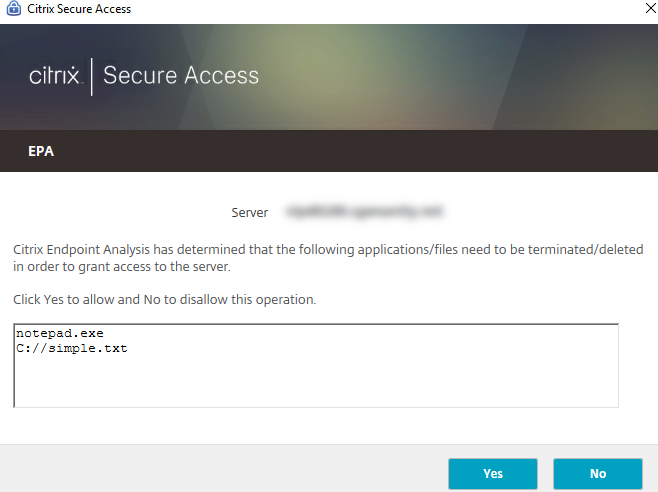
In Files to be deleted, enter the file name.This specifies the files that the Endpoint Analysis plug-in must delete. When you delete or cancel a process, a notification is displayed to the end users.
-
-
In Expression you can leave the expression ns_true or build an expression for a specific application, such as antivirus or security software, and then click OK.
To configure a preauthentication profile by using the GUI
-
Navigate to NetScaler Gateway > Policies > Authentication/Authorization, and then click Pre-Authentication EPA.
-
In the details pane, on the Profiles tab, click Add.
-
In Name, type the name of the application to be checked.
-
In Action, select ALLOW or DENY.
-
In Processes to be canceled, type the name of the process to be stopped.
-
In Files to be deleted, type the name of the file to be deleted, such as c:\clientext.txt, click Create, and then click Close.This specifies the files that the Endpoint Analysis plug-in must delete. When you delete or cancel a process, a notification is displayed to the end users.
If you use the GUI to configure a preauthentication profile, you then create the preauthentication policy by clicking Add on the Policies tab. In the Create Pre-Authentication Policy dialog box, select the profile from the Request Profile menu.
Add a preconfigured expression to a preauthentication policy
NetScaler Gateway comes with pre-configured expressions, called named expressions. When you configure a policy, you can use a named expression for the policy. For example, you want the preauthentication policy to check for Symantec antivirus 10 with updated virus definitions. Create a preauthentication policy and add the expression as described in the following procedure.
When you create a preauthentication or session policy, you can create the expression when you create the policy. You can then apply the policy, with the expression, to virtual servers or globally.
The following procedure describes how to add a preconfigured antivirus expression to a policy by using the configuration utility.
Add a named expression to a preauthentication policy
-
Navigate to NetScaler Gateway > Policies > Authentication/Authorization, and then click Pre-Authentication EPA.
-
In the details pane, select a policy and then click Open.
-
Next to Named Expressions, select Anti-Virus, select the antivirus product from the list.
-
Click Add Expression, click Create, and then click Close.
Configure custom expressions
A custom expression is one that you create within the policy. When you create an expression, you configure the parameters for the expression.
You can also create custom expressions to refer to commonly used strings. This eases the process of configuring preauthentication policies and also in maintaining the configured expressions.
For example, you want to create a custom expression for Symantec antivirus 10 and make sure that the virus definitions are no more than three days old. Create a policy and then configure the expression to specify the virus definitions.
The following procedure shows how to create an expression in a preauthentication policy. You can use the same steps in a session policy.
Create a preauthentication policy and custom expression
-
Navigate to NetScaler Gateway > Policies > Authentication/Authorization, and then click Pre-Authentication EPA.
-
In the details pane, click Add.
-
In Name, type a name for the policy.
-
Next to Request Profile, click New.
-
In the Create Authentication Profile dialog box, in Name, type a name for the profile and in Action, select Allow, and then click Create.
-
In the Create Pre-Authentication Policy dialog box, next to Match Any Expression, click Add.
-
In Expression Type, select Client Security.
-
Configure the following: a. In Component, select Anti-Virus. b. In Name, type a name for the application. c. In Qualifier, select Version. d. In Operator, select ==. e. In Value, type the value. f. In Freshness, type 3, and then click OK.
-
In the Create Pre-Authentication Policy dialog box, click Create, and then click Close.
When you configure a custom expression, it is added to the Expression box in the policy dialog box.
Configure compound expressions
A preauthentication policy can have one profile and multiple expressions. If you configure compound expressions, you use operators to specify the conditions of the expression. For example, you can configure compound expressions to require the user device to run one of the following antivirus applications:
-
Symantec Antivirus 10
-
McAfee Antivirus 11
-
Sophos Antivirus 4
You configure the expression with the OR operator to check for the preceding three applications. If NetScaler Gateway detects the correct version of any of the applications on the user device, users are allowed to log on. The expression in the policy dialog box appears as follows:
av_5_Symantec_10 || av_5_McAfeevirusscan_11 || av_5_sophos_4
For more information about compound expressions, see Configuring Compound Expressions.
Bind preauthentication policies
After you create the preauthentication policy, bind the policy to the level to which it applies. You can bind the preauthentication policies to virtual servers or globally.
Create and bind a preauthentication policy globally
-
On the Configuration tab, click NetScaler Gateway, and then click Global Settings.
-
In the details pane, click Change pre-authentication settings.
-
In the Global Pre-Authentication Settings dialog box, in Action, select Allow or Deny.
-
In Name, type a name for the policy.
-
In the Global Pre-authentication settings dialog box, next to Named Expressions, select General, select True value, click Add Expression, click Create, and then click Close.
Bind a preauthentication policy to a virtual server
-
On the Configuration tab, click NetScaler Gateway, and then click Virtual Servers.
-
In the details pane, select a virtual server, and then click Open.
-
In the configure NetScaler Gateway Virtual Server dialog box, click the Policies tab, and then click Pre-authentication.
-
Under Details, click Insert Policy, and then under Policy Name, select the preauthentication policy.
-
Click OK.
Unbind and remove preauthentication policies
You can remove a preauthentication policy from NetScaler Gateway if necessary. Before you remove a preauthentication policy, unbind it from the virtual server or globally.
Unbind a global preauthentication policy
-
Navigate to NetScaler Gateway > Policies > Authentication/Authorization, and then click Pre-Authentication EPA.
-
In the details pane, select a policy and then in Action, click Global Bindings.
-
In the Bind/Unbind Pre-authentication Policies to Global dialog box, select a policy, click Unbind Policy, and then click OK.
Unbind a preauthentication policy from a virtual server
-
On the Configuration tab, click NetScaler Gateway, and then click Virtual Servers.
-
In the Configure NetScaler Gateway Virtual Server dialog box, click the Policies tab, and then click Preauthentication.
-
Select the policy and then click Unbind Policy.
When the preauthentication policy is unbound, you can remove the policy from NetScaler Gateway.
Remove a preauthentication policy
-
Navigate to NetScaler Gateway > Policies > Authentication/Authorization, and then click Pre-Authentication EPA.
-
in the details pane, select a policy and then click Remove.
Set the priority of preauthentication policies
You can have multiple preauthentication policies that are bound to different levels. For example, you have a policy that checks for a specific antivirus application bound globally and a firewall policy bound to the virtual server. When users log on, the policy that is bound to the virtual server is applied first. The policy that is bound globally is applied second.
You can change the order in which the preauthentication scans occur. To make NetScaler Gateway apply the global policy first, change the priority number of the policy bound to the virtual server, giving it a higher priority number than the policy bound globally. For example, set the priority number for the global policy to one and the virtual server policy to two. When users log on, NetScaler Gateway runs the global policy scan first and the virtual server policy scan second.
Change the priority of a preauthentication policy
-
On the Configuration tab, click NetScaler Gateway, and then click Virtual Servers.
-
In the details pane, select a virtual server, and then click Open.
-
On the Policies tab, click Pre-authentication.
-
Under Priority, type the priority number for the policy, and then click OK.