Configure load balancing servers for Citrix Endpoint Management or Citrix XenMobile Server
After using the {{page.citrix-adc-generic}} for Citrix Endpoint Management wizard for initial setup, use the {{page.gateway-onprem}} configuration utility to configure load balancing, as described in this section. For Citrix Endpoint Management, use SSL Offload. For Citrix Endpoint Management Server, be sure to refer to the recommendations for load balancing modes under "Deployment Summary" in Integrating with {{page.gateway-onprem}} and {{page.citrix-adc-generic}}.
To use SSL bridge mode for {{page.citrix-adc-generic}} VIPs
Use SSL Bridge mode if Citrix Endpoint Management is in the DMZ. When you load balance Citrix Endpoint Management with {{page.citrix-adc-generic}} VIPs in SSL Bridge mode, Internet traffic flows directly to the Citrix Endpoint Management server, where connections terminate. SSL Bridge mode is the simplest mode to set up and troubleshoot.
-
Before configuring SSL Bridge mode, go to Citrix Endpoint Management App Management Settings and verify that Communication with Citrix Endpoint Management Server is HTTPS.

-
After you log on to the configuration utility, on the Home tab, in MDM Server LB, click Configure.
-
Under LB Virtual Server for Device Management, in Name, type a name for the server.
-
In IP Address, type the IP address for the virtual server and then click Continue.
-
On the Load Balance Citrix Endpoint Management MDM Servers page, repeat Steps 3 and 4 and then click Create.
-
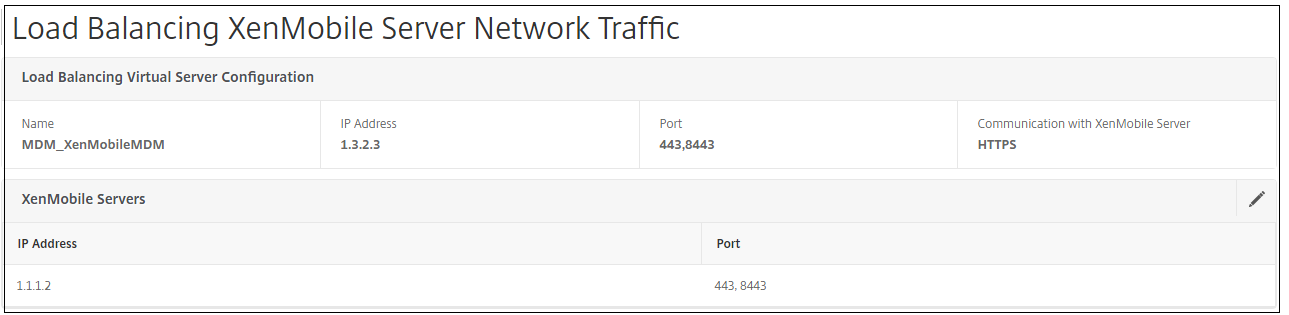
Verify that the settings are correct and then click Done.
-
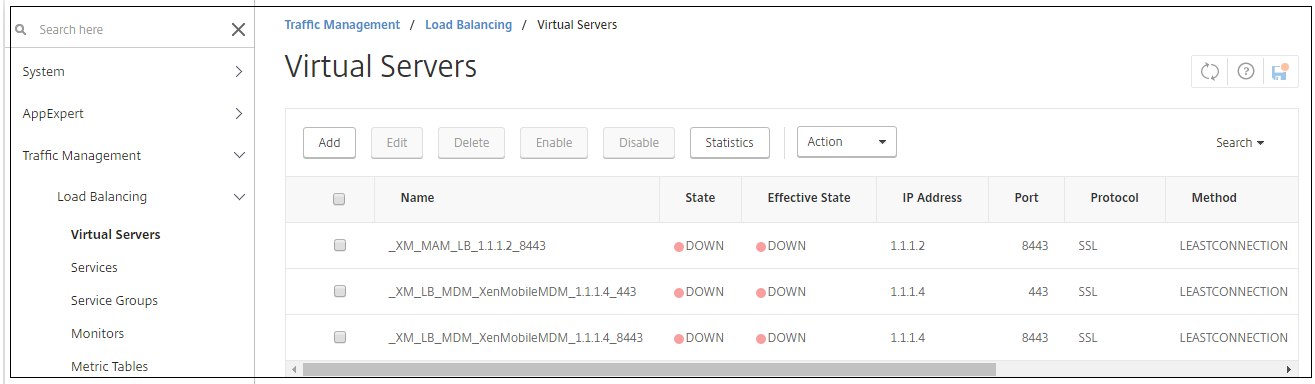
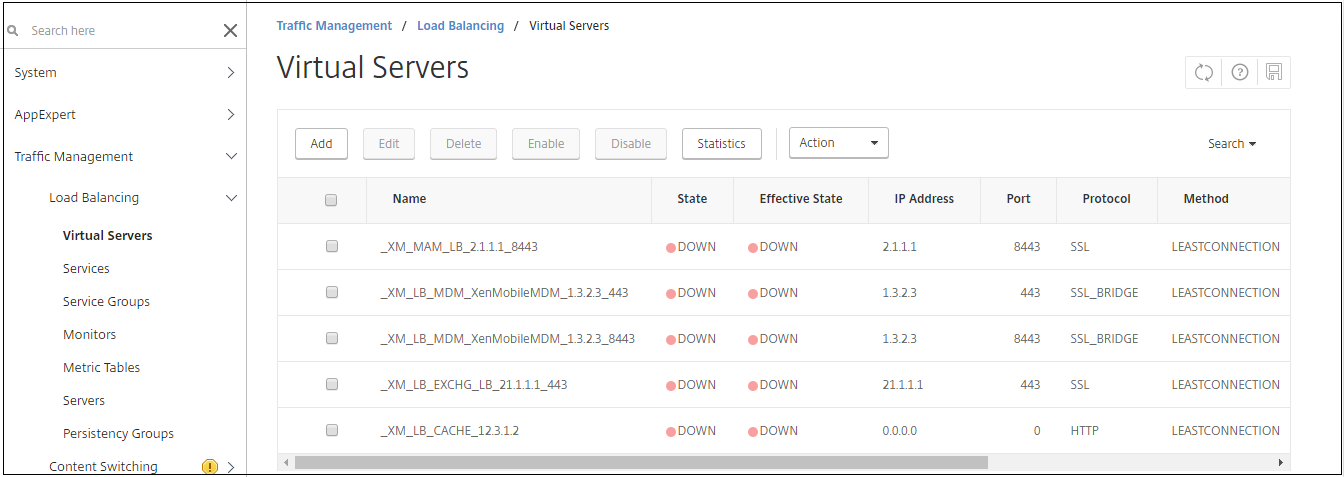
To verify the load balancing configuration, go to Traffic Management \> Virtual Servers.
To use SSL Offload mode for {{page.citrix-adc-generic}} VIPs
Use SSL Offload for Citrix Endpoint Management. Also use SSL Offload, if necessary to meet security standards, when the on-premises Citrix Endpoint Management is in the internal network. When you load balance Citrix Endpoint Management with {{page.citrix-adc-generic}} VIPs in SSL Offload mode, Internet traffic flows directly to the {{page.citrix-adc-generic}} appliance, where connections terminate. {{page.gateway-onprem}} then establishes new sessions from the appliance to Citrix Endpoint Management. SSL Offload mode involves more complexity during setup and troubleshooting.
-
Before configuring SSL Offload mode, go to Citrix Endpoint Management App Management Settings and verify that Communication with Citrix Endpoint Management Server is HTTP.

-
Log on to the configuration utility. On the Home tab, in MDM Server LB, click Configure.
-
Under LB Virtual Server for Device Management, in Name, type a name for the server.
-
In IP Address, type the IP address for the virtual server and then click Continue.
-
On the Load Balance Citrix Endpoint Management MDM Servers page, repeat Steps 3 and 4 and then click Create.
-
Verify the settings and then click Done.
-
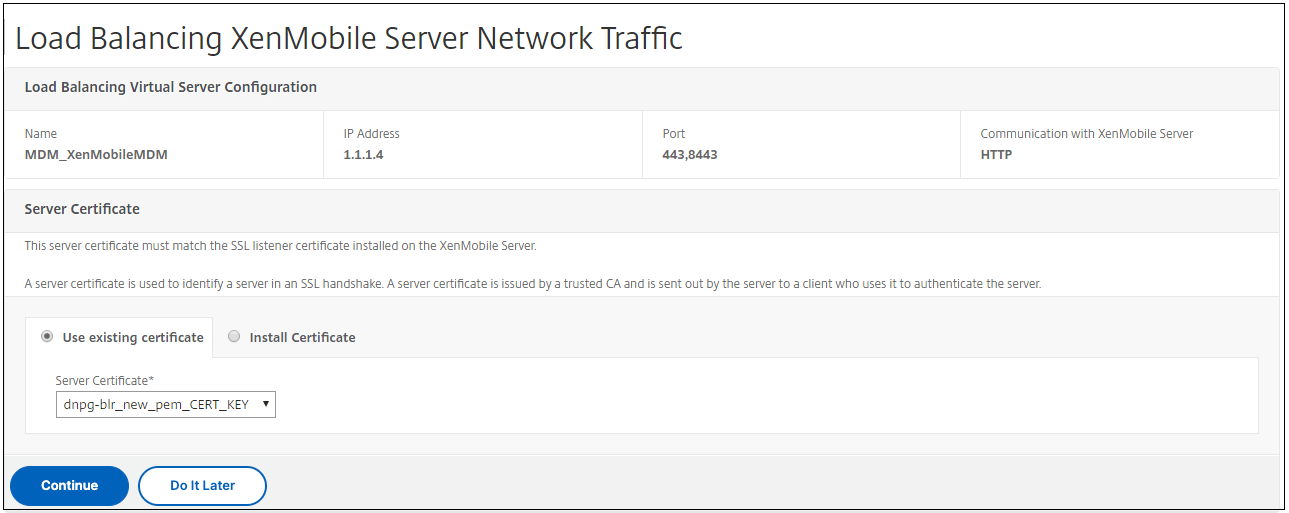
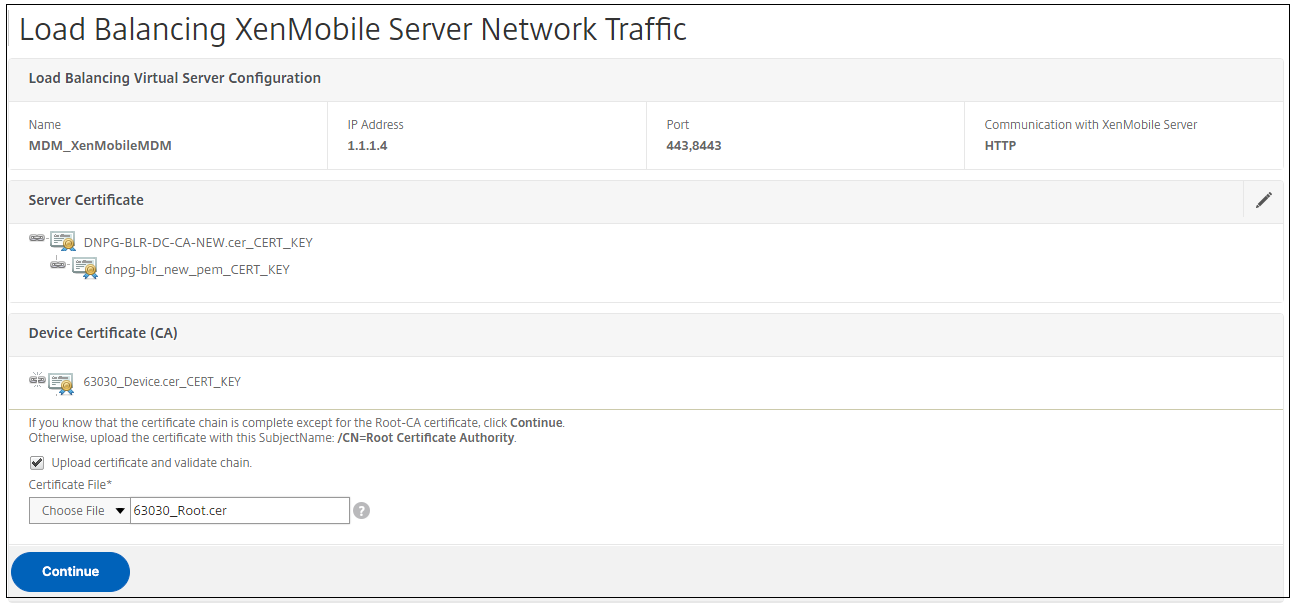
When prompted to add a server certificate, choose the server certificate and click Continue.
-
Specify the CA certificate and click Continue.
-
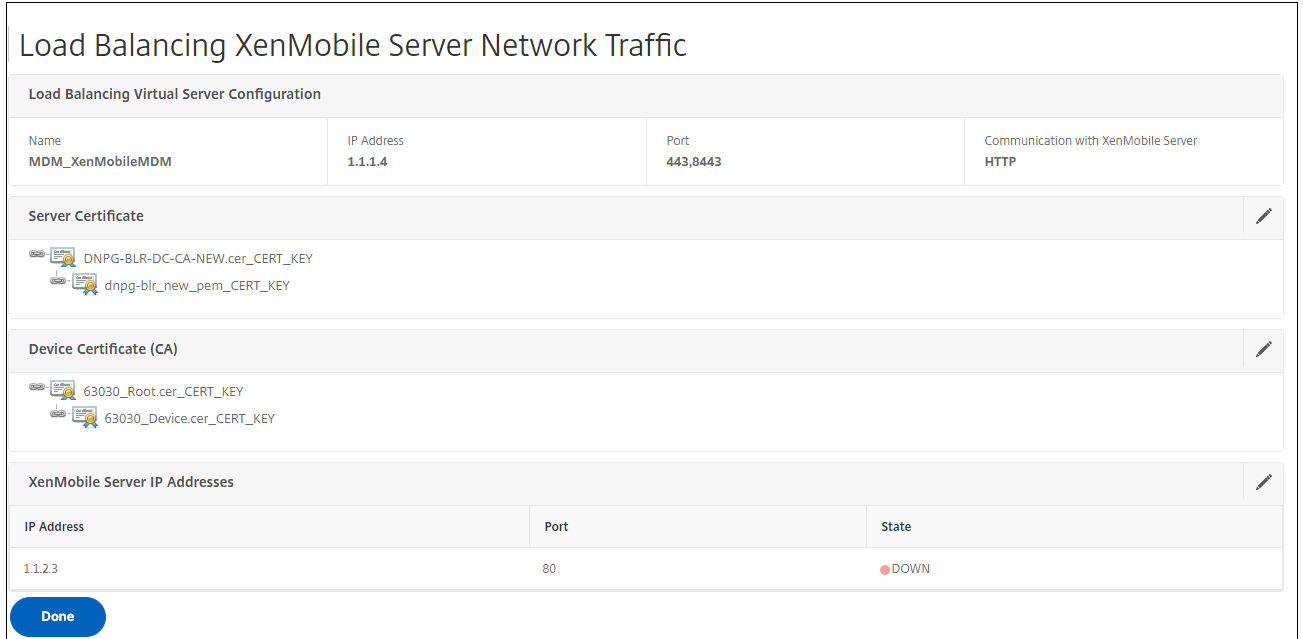
Keep the same Citrix Endpoint Management IP address. Click Done.
-
To verify the load balancing configuration, go to Traffic Management \> Virtual Servers.