Always On
The Always On feature of NetScaler Gateway ensures that users are always connected to the enterprise network. This persistent VPN connectivity is achieved by an automatic establishment of a VPN tunnel.
Note
Always On feature supports captive portals for NetScaler 12.0 Build 51.24 and later.
When to Use Always On
Use Always On when you need to provide seamless VPN connectivity based on user location and have to prevent network access by a user who is not connected to a VPN.
The following scenarios illustrate the use of Always On.
-
An employee starts the laptop outside the enterprise network and needs assistance to establish VPN connectivity.Solution: When the laptop is started outside the enterprise network, Always On seamlessly establishes a tunnel and provides VPN connectivity.
-
An employee using VPN connectivity moves into the enterprise network. The employee is switched to an enterprise network but remains connected to the VPN tunnel, which is not a desirable state.Solution: When the employee moves into the enterprise network, Always On tears down the VPN tunnel and seamlessly switches the employee to the enterprise network.
-
An employee moves outside the enterprise network and closes the laptop (not shut down). The employee needs assistance to establish VPN connectivity upon resuming work on the laptop.Solution: When the employee moves outside the enterprise network, Always On seamlessly establishes a tunnel and provides VPN connectivity.
-
An enterprise wants to regulate the network access provided to its users when they are not connected to a VPN tunnel.Solution: Depending on the configuration, Always On restricts access, allowing users to access only the gateway network.
Understanding the Always On Framework
Always On automatically connects a user to a VPN tunnel that the client has previously established. The first time the user needs a VPN tunnel, the user must connect to the NetScaler Gateway URL and establish the tunnel. After the Always On configuration is downloaded to the client, this configuration drives the subsequent establishment of the tunnel.
The Citrix Secure Access™ client executable is always running on the client machine. When the user logs on or the network changes, the Citrix Secure Access client determines whether the user laptop is on the enterprise network. Depending upon the location and the configuration, the Citrix Secure Access client either establishes a tunnel or tears down an existing tunnel.
Tunnel establishment is initiated only after the user logs on to the computer. The Citrix Secure Access client uses the client machine’s credentials to authenticate with the gateway server and tries to establish a tunnel.
Automatic reestablishment of a Tunnel
Automatic reestablishment of a tunnel is triggered when a VPN tunnel is torn down by NetScaler Gateway.
Note
When endpoint analysis fails, the NetScaler Gateway client does not reattempt tunnel establishment, but does display an error message. If there is an authentication failure, the NetScaler Gateway client prompts the user for credentials.
Supported user authentication methods for seamless tunnel establishment
The supported user authentication methods are as follows:
-
User name + AD password: If the Windows user name and password are used for authentication, the Citrix Secure Access client seamlessly establishes the tunnel by using these credentials.
-
User certificate: If a user certificate is used for authentication and there is only one certificate on the client machine, Citrix Secure Access client seamlessly establishes a tunnel by using this certificate. If multiple client certificates are installed, the tunnel is established after the user has selected the preferred certificate. Citrix Secure Access client uses this preferred certificate for later tunnels.If the smart cards share a user certificate, autologon cannot be achieved if the certificates are dynamically installed in the store as compared to the certificates being present in the store.
-
User certificate and User name + AD password: This authentication method is the combination of previously described authentication methods.
Note
All other authentication mechanisms are supported but the tunnel establishment is not seamless for any other authentication methods.
Configuration requirements for Always On
Enterprise administrator must enforce the following for the managed devices:
-
User must not be able to end the process/service for specific configuration
-
User must not be able to uninstall the package for specific configuration
-
User must not be able to change specific registry entries
Note
The feature might not work as expected if the user has administration privileges, as in the case of non-managed devices.
Considerations While Enabling the Always On feature
Review the following section before enabling the Always On feature.
Primary Network Access: When the tunnel is established, the traffic to the enterprise network is decided based on split-tunnel configuration. Other configurations are not provided to override this behavior.
Proxy settings of client machine: Proxy settings of the client machine are ignored for connecting to the gateway server.
Note
The NetScaler appliance's proxy configuration is not ignored. Only the proxy settings of the client machine are ignored. Users who have a proxy configured on their systems are notified that the VPN plug-in has ignored their proxy settings.
Configuring Always On
To configure Always On, create an Always On profile on the NetScaler Gateway appliance and apply the profile.
To create an Always On profile:
-
In the NetScaler GUI, navigate to Configuration > NetScaler Gateway > Policies > AlwaysON.
-
On the AlwaysON Profiles page, click Add.
-
On the Create AlwaysON Profile page, enter the following details:
-
Name – The name for your profile.
-
**Location Based VPN (client-side registry name: LocationDetection) – Select one of the following settings:
-
Remote to enable a client to detect whether it is in the enterprise network and establish the tunnel if not in the enterprise network. Remote is the default setting.
-
Everywhere to let a client skip the location detection and establish the tunnelregardless of the client's location
-
-
Client Control – Select one of the following settings:
-
Deny to prevent the user from logging off and connecting to another gateway. Deny is the default setting.
-
Allow to enable the user to log off and connect to another gateway.
-
-
Network Access On VPN Failure (client-side registry name: AlwaysOn) – Select one of the following settings:
-
Full Access to allow network traffic to flow to and from the client when the tunnel is not established. Full Access is the default setting.
-
Only To Gateway to prevent network traffic from flowing to or from the client when the tunnel is not established. However, the traffic to or from the Gateway IP address is allowed.Note: In Only To Gateway mode, only the virtual server, DNS, and DHCP traffic are unblocked. To unblock other websites, IP address ranges, or IP addresses, you must set the AlwaysOnAllowlist registry with a semicolon-separated list of FQDNs, IP address ranges, or IP addresses. For example, mycompany.com,mycdn.com,10.120.67.0-10.120.67.255,67.67.67.67
-
-
-
Click Create to finish creating your profile.
To apply the Always On profile:
-
In the NetScaler interface, select Configuration > NetScaler Gateway > Global Settings.
-
On the Global Settings page, click the Change Global Settings link, and then select the Client Experience tab.
-
From the AlwaysON Profile Name drop-down menu, select the newly created profile, and click OK.
Note: Similar configuration can be done in the Session profile to apply the policies at a group level, server lever, or a user level.
Note on IIPs
Machine level tunnel uses certificate-based authentication and the session that is created has the certificate's common name as a user name. So, if device certificates have unique common names, different machines' sessions have different user name and thus different IIPs. Ensure that you generate a device certificate with unique names. Ideally, you must use machine names as the device certificate's common name.
Behavior summary of different configurations for admin users and non-admin users
The following table summarizes the behavior for different configurations. It also details the possibility of certain user actions, which can affect Always On functionality.
| networkAccessONVPNFailure | Client control | Non-admin user | Admin user |
|---|---|---|---|
fullaccess |
Allow | The tunnel gets established automatically. The user can log off and stay off the network. The user can also point to another NetScaler Gateway. | The tunnel gets established automatically. The user can log off and stay off the enterprise network. The user can also point to another NetScaler Gateway. |
fullaccess |
Deny | The tunnel gets establish automatically. The user cannot log off or point to another NetScaler Gateway. | The tunnel gets established automatically. The user can uninstall the Citrix Secure Access client or move to another NetScaler Gateway. |
| onlyToGateway | Allow | The tunnel gets established automatically. The user can log off (no network access). The user can also point to another NetScaler Gateway, in which case, the access is given only to the newly pointed NetScaler Gateway. | The tunnel gets established automatically. The user can uninstall the Citrix Secure Access client or move to another NetScaler Gateway. |
| onlyToGateway | Deny | The tunnel gets establish automatically. The user cannot log off or point to another NetScaler Gateway. | The tunnel gets established automatically. The user can uninstall the Citrix Secure Access client or move to another NetScaler Gateway. |
Allowing selected URLs when Always On is down
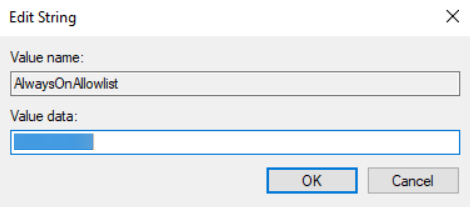
Users can access a few websites even when Always On is down and the network is locked. Admins can use the AlwaysOnAllowlist registry to add the websites that you want to enable access to when Always On is down.
Note:
-
AlwaysOnAllowlist registry is supported from release 13.0 build 47.x and later.
-
AlwaysOnAllowlist registry location is Computer\HKEY_LOCAL_MACHINE\SOFTWARE\Citrix\Secure Access Client.
-
Wildcard URLs/FQDNs are not supported in the AlwaysOnAllowlist registry.
To set the AlwaysOnAllowlist registry
Set the AlwaysOnAllowlist registry with a semicolon-separated list of FQDNs, IP address ranges, or IP addresses that you want to allow access to.
Example: example.citrix.com;192.0.2.0;192.0.2.100-192.0.2.255
The following figure displays a sample AlwaysOnAllowlist registry.