
Configuring Settings for Your Citrix Endpoint Management™ Environment
The NetScaler for Citrix Endpoint Management wizard guides you through the configuration of NetScaler features for your Citrix Endpoint Management deployment. You can use the wizard to:
-
Set up a Micro VPN. In this scenario, remote users can access apps and desktops in the internal network.
-
For Citrix Endpoint Management MAM-only mode, you must use NetScaler Gateway for authentication.
-
For MDM deployments, Citrix recommends NetScaler Gateway for mobile device VPN.
-
For ENT deployments, if a user opts out of MDM enrollment, the device operates in the legacy MAM mode and enrolls using the NetScaler Gateway FQDN.
-
-
Configure certificate-based authentication. The default configuration for Citrix Endpoint Management is user name and password authentication. To add another layer of security for enrollment and access to the Citrix Endpoint Management environment, consider using certificate-based authentication.
-
Load balance Citrix Endpoint Management servers. NetScaler load balancing is required for all Citrix Endpoint Management device modes if you have multiple Citrix Endpoint Management servers or if the Citrix Endpoint Management is inside your DMZ or internal network (and therefore traffic flows from devices to NetScaler to Citrix Endpoint Management). In this scenario, the NetScaler appliance resides in the DMZ between the user device and the Citrix Endpoint Management servers to load balance encrypted data sent from mobile devices to the Citrix Endpoint Management servers.
-
Load balance Microsoft Exchange servers with email filtering. In this scenario, the NetScaler appliance is between the user device and the Citrix Endpoint Management NetScaler Connector (XNC), and between the user device and the Microsoft Exchange CAS servers. All requests from user devices go to the NetScaler Gateway appliance, which then communicates with the XNC to retrieve information about the device. Depending on the response from the XNC, the NetScaler appliance either forwards the request from a whitelisted device to the server in the internal network, or drops the connection from a blacklisted device.
-
Load balance ShareFile StorageZones Connectors based on the type of content requested. This scenario prompts you for basic information about your storage zones controller environment and then generates a configuration that does the following:
-
Load balances traffic across storage zones controllers.
-
Provides user authentication for StorageZones Connectors.
-
Validates URI signatures for ShareFile uploads and downloads.
-
Terminates SSL connections at the NetScaler appliance.
-
For more information about configuring ShareFile, see Configure NetScaler for storage zones controller.
Important:
Before you use the Citrix Endpoint Management wizard, be sure to refer to these Citrix Endpoint Management Deployment articles for design and deployment information and recommendations:
You can use the NetScaler for Citrix Endpoint Management wizard only once. If you want multiple Citrix Endpoint Management instances, such as for test, development, and production environments, you must configure NetScaler for the additional environments manually. The following support articles list the commands run by the wizard and provide instructions for running them to create a NetScaler instance:
License requirements for NetScaler features
You must install licenses to enable the following NetScaler features:
-
Citrix Endpoint Management MDM load balancing requires a NetScaler standard license.
-
ShareFile load balancing with StorageZones requires a NetScaler standard license.
-
Exchange load balancing requires a NetScaler license or an Advanced license with the addition of an Integrated Caching license.
NetScaler for Citrix Endpoint Management wizard
This section provides an example of using the NetScaler for Citrix Endpoint Management wizard to:
-
Set up micro VPN access for remote user connections to Citrix Endpoint Management-managed resources in your internal network
-
Configure certificate-based authentication. For information about obtaining and installing a public SSL certificate, see Installing and Managing Certificates.
-
Configure load balancing for Citrix Endpoint Management servers.
To use the wizard:
-
In the NetScaler® GUI, click the Configuration tab and then click XenMobile in the Integrate with Citrix® Products section.
-
Select your Citrix Endpoint Management version and then click Get Started.
-
Select the features that you want to configure. You can use this wizard only once, so must perform the subsequent configuration manually. These instructions assume that you select the following settings: Access through NetScaler Gateway (for Citrix Endpoint Management running in ENT or MAM modes) and Load Balance Citrix Endpoint Management Servers.
-
On the NetScaler Gateway Configuration page, enter values for the external facing NetScaler Gateway IP address, port, and virtual server name.
-
On the Server Certificate for NetScaler Gateway page, in Certificate File, choose the certificate file from Local or Appliance.
-
Local: Select the certificate on your computer
-
Appliance: Select the certificate on NetScaler Gateway (appliance).
-
-
In the Authentication page, in Primary authentication method, select Client Certificate and then enter a name for the certificate profile.The following steps assume that you already have a certificate policy.If you must create a certificate policy, click create a certificate policy. On the Citrix Endpoint Management Certificate screen, choose an existing server certificate or install a new certificate. If you’re running multiple Citrix Endpoint Management servers, you add a certificate for each one. For Server Logon Name Attribute, specify userPrincipalName or sAMAccountName, per your requirements.
-
Click Two Factor to enable two-factor authentication, client certificate authentication followed by LDAP or RADIUS as the secondary authentication type.
-
In Secondary authentication method, select the secondary authentication method.
-
With the client certificate as your primary authentication type, you have the option of configuring LDPA (or RADIUS) as the secondary authentication type.To use client certificate authentication only, leave Second authentication method as None and then click Continue.To use client certificate + domain (LDAP) authentication, change Secondary authentication method to LDAP and configure the authentication server settings.
-
-
Configure the Citrix Endpoint Management App Management Settings.
-
Enter the Citrix Endpoint Management FQDN. This is the load balancing FQDN for MAM.
-
Enter a MAM-only Internal Load Balancing IP Address for the virtual server that load balances Citrix Endpoint Management servers. NetScaler Gateway communicates with the Citrix Endpoint Management through this MAM load balancing virtual IP.
-
This is an SSL offload deployment, so select HTTP in Communication with Citrix Endpoint Management Server.
-
The Split DNS mode for MicroVPN field automatically sets to BOTH.
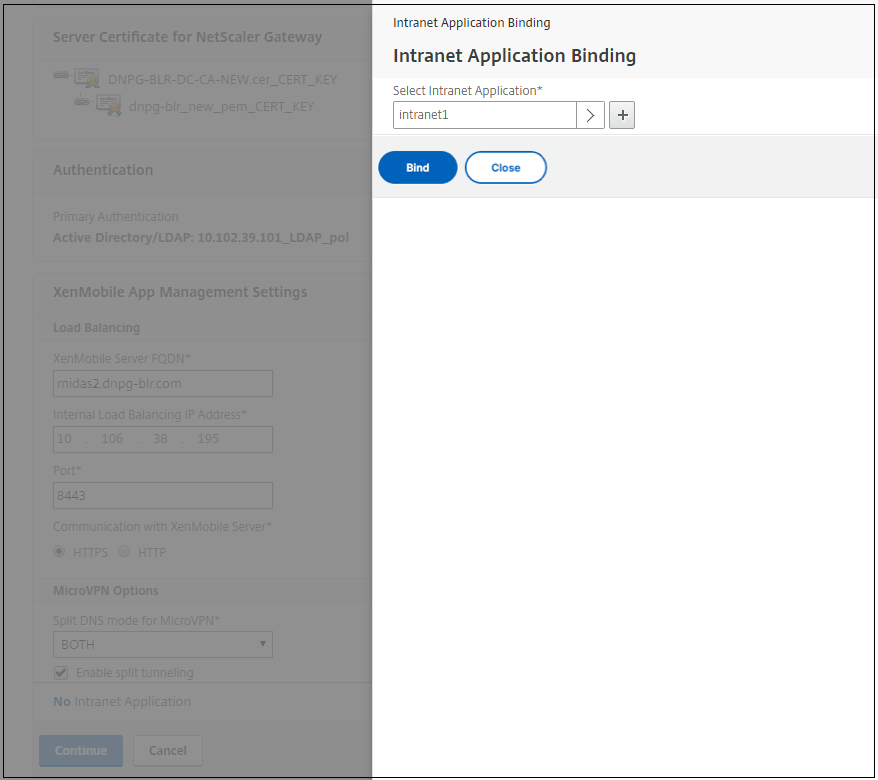
If your deployment requires split tunneling, select Enable split tunneling. Configure Intranet Application Binding, next, if you enable split tunneling.By default, Secure Web access is tunneled to the internal network, which means that Secure Web uses a per-application VPN tunnel back to the internal network for all network access and the NetScaler appliance uses split tunnel settings.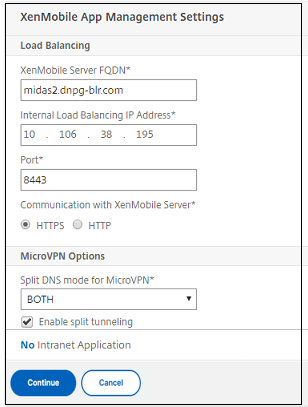
-
-
To configure interception rules for user connections on NetScaler Gateway, you must configure Intranet Application Binding. Click + to add a binding.
-
Complete the parameters for allowing network access and then click Create.
-
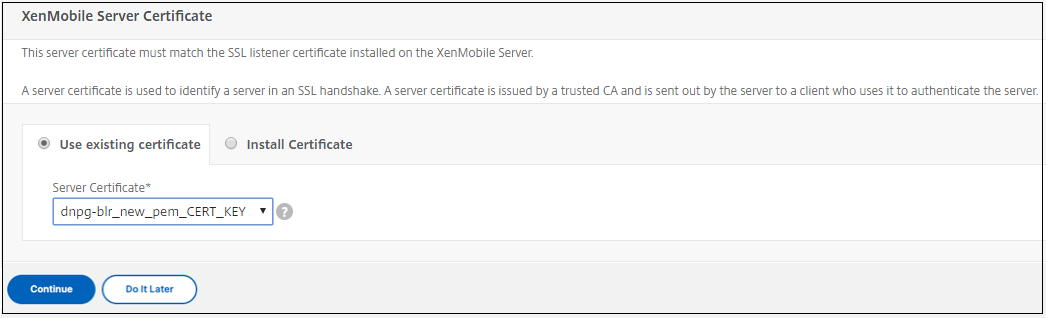
Add the Citrix Endpoint Management certificate. This is used for the MAM load balancing virtual server.
-
Under Citrix Endpoint Management Servers, click Add Server to add the Citrix Endpoint Management IP Address to bind to the load balancing virtual IP.
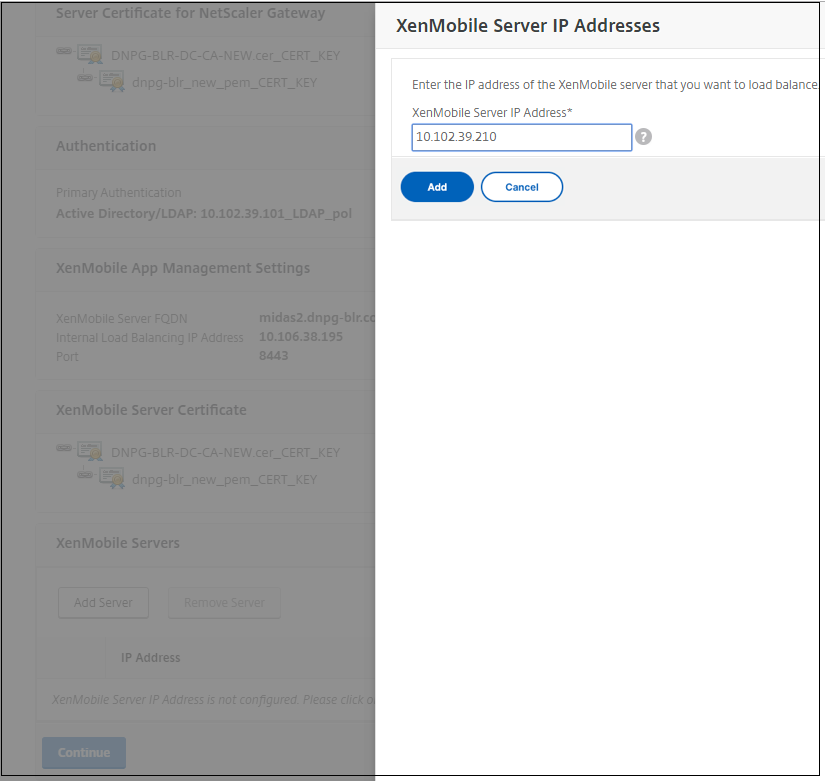
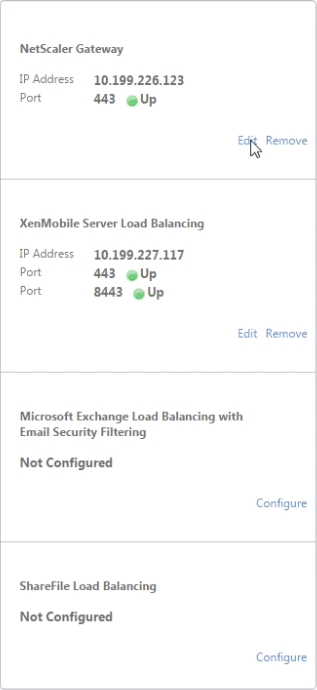
On the NetScaler dashboard, confirm that NetScaler Gateway and Citrix Endpoint Management load balancing are configured.
If you use the sAMAccount attributes in the user certificates as an alternative to User Principal Name (UPN), configure the certificate profile as described in Configure client certificate or client certificate and domain authentication.