
Adding {{page.netscaler-cpx-short}} Instances to Citrix ADM
You must add the {{page.netscaler-cpx-short}} instances installed on a Docker host to Citrix Application Delivery Management (ADM) software if you want to manage and monitor these instances.
You can add instances either while setting up ADM for the first time or at a later time.
To add instances, you must create an instance profile and specify either the host name or IP address of each instance, or a range of IP addresses. This instance profile contains the user name and password of the instance(s) that you want to add to Citrix® ADM. For each instance type, a default profile is available. For example, the ns-root-profile is the default profile for Citrix ADC instances. This profile is defined by the default ADC administrator credentials. If you have changed the default admin credentials of your instances, you can define custom instance profiles for those instances. If you change the credentials of an instance after the instance is discovered, you must edit the instance profile or create a new profile, and then rediscover the instance.
Prerequisites
Make sure that you have:
-
Installed the Citrix ADM software on Citrix XenServer. For more information, see Citrix ADM Documentation.
-
Installed the {{page.netscaler-cpx-short}} instances on a Docker host.
To add {{page.netscaler-cpx-short}} instances to ADM:
-
In a web browser, type the IP address of the Citrix Application Delivery Management (for example,
http://192.168.100.1). -
In the User Name and Password fields, enter the administrator credentials. The default administrator credentials are nsroot and nsroot.
-
Navigate to Networks \> Instances > Citrix ADC and click CPX tab.
-
Click Add to add new CPX instances in Citrix ADM.
-
The Add {{page.netscaler-cpx-short}} page opens. Enter the values for the following parameters:
-
You can add CPX instances by providing either the reachable IP address of the CPX instance or the IP address of the Docker container where the CPX instance is hosted.
-
Select the profile of the CPX instance.
-
Select the site where the instances is to be deployed.
-
Select the agent.
-
As an option, you can enter the key-value pair to the instance. Adding key-value pair makes it easy for you to search for the instance later.
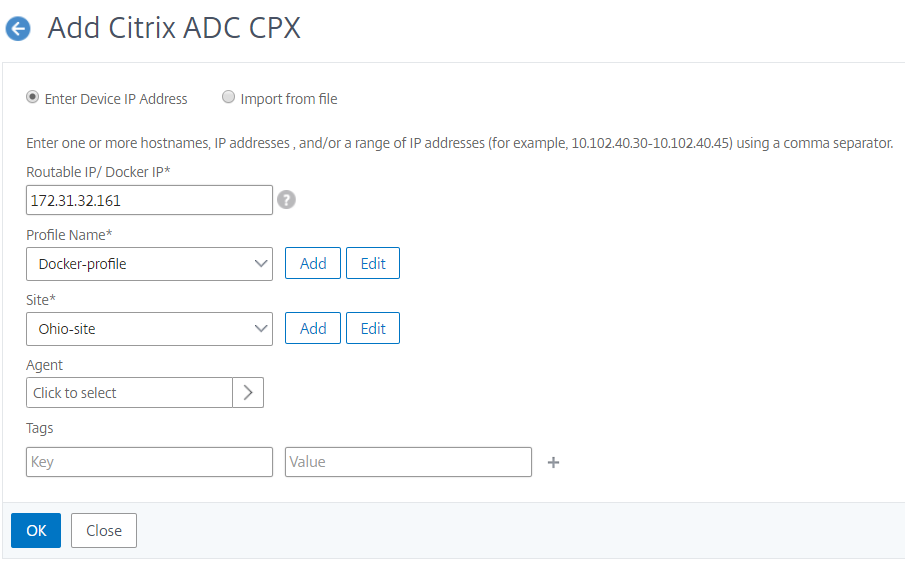
-
-
Click OK.
Note
If you want to rediscover an instance, navigate to Networks \> Instances \> Citrix ADC > CPX, select the instance you want to rediscover, and then from the Select Action drop-down list, click Rediscover.
Adding {{page.netscaler-cpx-short}} instances to Citrix ADM using environment variables
You can also add the {{page.netscaler-cpx-short}} instances to Citrix ADM using environment variables. To add instances, you must configure the following environment variables for the {{page.netscaler-cpx-short}} instance.
-
NS_MGMT_SERVER- ADM IP address/FQDN -
HOST- Node IP address -
NS_HTTP_PORT- Mapped HTTP port on node -
NS_HTTPS_PORT- Mapped HTTPS port on node -
NS_SSH_PORT- Mapped SSH port on node -
NS_SNMP_PORT- Mapped SNMP port on node -
NS_ROUTABLE- ({{page.netscaler-cpx-short}} pod IP address is not routable from outside.)
The following is an example
docker run command for adding a {{page.netscaler-cpx-short}} instance to Citrix ADM.
docker run -dt --privileged=true -p 9080:9080 -p 9443:9443 -p 9022:22 -p 9161:161 -e EULA=yes -e NS_MGMT_SERVER=abc-mgmt-server.com -e HOST=10.1.1.1 -e NS_HTTP_PORT=9080 -e NS_HTTPS_PORT=9443 -e NS_SSH_PORT=9022 -e NS_SNMP_PORT=9161 -e NS_ROUTABLE=0 --ulimit core=-1 –name test cpx:latest