
NetScaler CPX licensing
NetScaler CPX is a container-based application delivery controller that can be provisioned on a Docker host to load balance microservice-based applications. You need a licensed NetScaler CPX for better performance of application delivery. NetScaler CPX supports legacy pool licensing and new Citrix Platform or Universal Hybrid Multi-Cloud licensing. All NetScaler CPX instances are licensed through only NetScaler Console (formerly NetScaler ADM).
NetScaler Console is available in both on-premises and cloud service offerings. You can use NetScaler Console to manage pooled capacity or Universal Hybrid Multi-Cloud (UHMC) or Citrix Platform License (CPL) licenses of all NetScaler form factors.
For information about NetScaler Console on-premises, see NetScaler Console on-premises. For information about NetScaler Console service, see NetScaler Console service.
Types of NetScaler CPX licensing
The following types of NetScaler CPX licenses are supported:
-
NetScaler CPX CPX Express - Free, Developer Centric NetScaler for Kubernetes
-
Commercial NetScaler CPX – Production ready, Enterprise support proxy
NetScaler CPX Express
NetScaler CPX Express is a software edition that is free-of-cost for on-premises and cloud deployments. When you download a NetScaler CPX instance from the Quay repository, the NetScaler CPX Express license is applied to the NetScaler CPX instance by default. All the NetScaler CPX features are available with the NetScaler NetScaler CPX Express license. For information about the supported features on CPX, see About NetScaler CPX. The NetScaler community support is available with NetScaler CPX Express but not the enterprise support.
The NetScaler CPX Express license offers 100 Mbps bandwidth capacity. You must license your NetScaler CPX instance for higher capacity, production deployment, and to avail enterprise support.
Note:
Starting from NetScaler CPX version 14.1 build 17.x, the bandwidth of NetScaler CPX Express license is increased from 20 Mbps to 100 Mbps. This increased bandwidth enables Kubernetes developers to try out NetScaler proxy.
Commercial NetScaler CPX
LAS will be the only way to activate and license NetScaler instances after April 15, 2026, supporting NetScaler Flexed licenses (CPL/UHMC), legacy NetScaler Bandwidth Pooled licenses. NetScaler CPX will support only NetScaler Flexed licenses (CPL/UMC) or legacy NetScaler pooled bandwidth licenses post LAS transition. For more information, see transition to flexed licensing for more details.
Supported pooled capacity for NetScaler CPX instances
| Product | Maximum bandwidth | Minimum bandwidth | Minimum instances | Maximum instances | Minimum bandwidth unit |
|---|---|---|---|---|---|
| NetScaler CPX | 40000 Note: It depends on CPU frequency, generation, and so on. | 20 Mbps | 1 | 16 | 10 Mbps |
Note:
Citrix is currently working on a NetScaler CPX consumption based or pay-as-you-grow based licensing model for public cloud-based offerings. Once ready, it will be available on the public cloud market place to consume.
How does NetScaler CPX licensing work?
NetScaler CPX pooled/CPL/UHMC licensing: A common license pool from which your NetScaler CPX instance can check out one instance license and only as much bandwidth as it needs. When the instance no longer requires these resources, it checks them back into the common pool, making the resources available to other instances that need them.
NetScaler CPX behavior: A single NetScaler CPX instance checking out up to 1 Gbps throughput, checks out only from the instance pool and not from the bandwidth license pool. NetScaler CPX operates in this way up to the 1 Gbps of bandwidth utilization. For example, if a NetScaler CPX instance consumes a 200 Mbps bandwidth, it uses the instance pool of license, instead of the bandwidth pool. However, if a NetScaler CPX instance consumes 1200 Mbps of throughput, the first 1000 Mbps is used from the instance pool and the remaining 200 Mbps is consumed from the bandwidth pool.
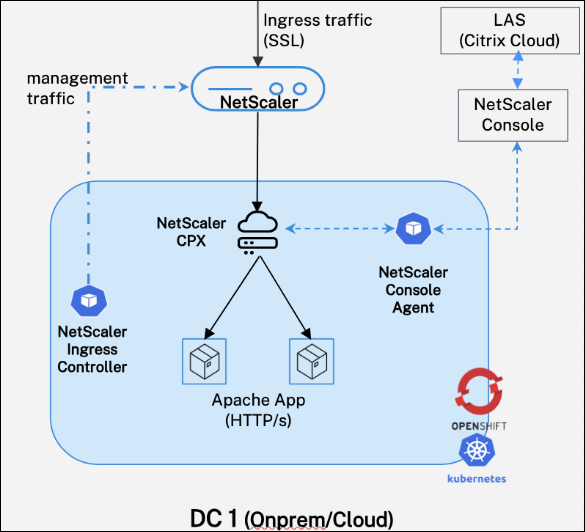
NetScaler CPX licensing workflow:
-
Set up NetScaler agent service or NetScaler agent on-prem with Citrix Cloud for LAS licensing.
-
Deploy the Console Container agent and check its status on NetScaler agent service or NetScaler agent on-prem.
-
Configure NetScaler CPX licensing and deploy NetScaler CPX.
-
On startup, NetScaler CPX sends a license registration request to the Console container agent, which relays it to NetScaler agent service or NetScaler agent on-prem.
-
NetScaler agent service or NetScaler agent on-prem registers NetScaler CPX and assigns bandwidth.
-
License is granted if pooled/UHMC/CPL license blobs are available.
-
How to license NetScaler CPX?
NetScaler CPX is licensed through the NetScaler agent service or on-prem. To license NetScaler CPX instances in a Kubernetes cluster, deploy a single Console container agent. One agent per cluster licenses all NetScaler CPX instances within that cluster.
Getting started with LASbased CPX licensing
-
Prerequisites: NetScaler Console Service or NetScaler Console on-premises with LAS based licensing must be enabled.
-
Deploy a container-based Console agent in the Kubernetes cluster where NetScaler CPX instances are deployed.
-
The following are the steps to deploy a container-based Console agent for NetScaler Console service customers:
-
Using HELM chart
-
Using OpenShift Operator
-
-
The following are the steps to deploy a container-based Console agent for NetScaler Console on-prem customers.
-
Using YAMLs.
-
Using OpenShift Operator.
-
-
-
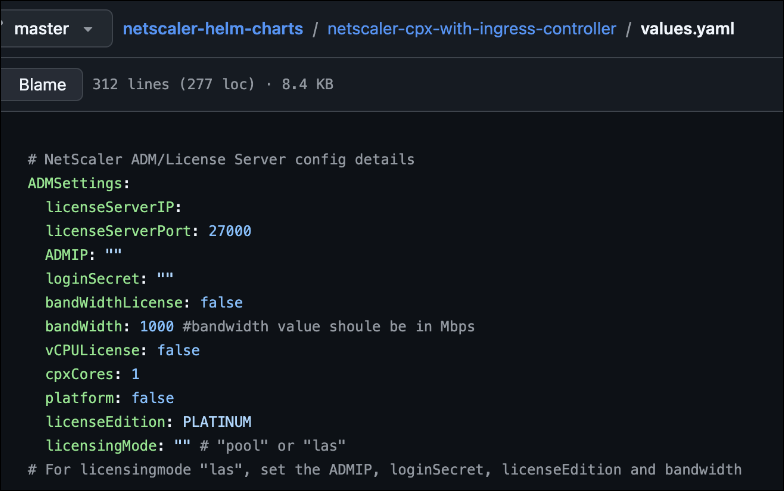
Upgrade to NetScaler CPX 14.1–51.x or later to support LAS based licensing. Refer to the CPX HELM chart for the latest NetScaler CPX deployment. Update the following mandatory variables only from
values.yamlof CPX HELM chart to support LAS-based licensing.-
licensingMode:las -
ADMIP: <Console Container agent Service IP>- Copy the container agent IP address from NetScaler Console on-prem or service from Infrastructure > Instances Dashboard > Agents section.orADMIP: <Console Container agent ServiceName.Namespace>- Copy the container agentHOSTNAMEfrom NetScaler Console on-prem or service from Infrastructure > Instances Dashboard > Agents section and append it with namespace in which container agent is deployed. -
loginSecret: NetScaler Console Container agent login credentials details.-
In case of YAML/HELM based deployment, you have to create a Kubernetes secret based on the Application ID and password details provided while generating the console agent YAML from NetScaler Console on-prem or service.
-
In OpenShift Operator based deployment, you must have already created the NetScaler Console login secret (refer to
loginSecretfield). You can use the same secret name here. -
bandWidth: The value in Mbps. For example, 500 Mbps.
-
-
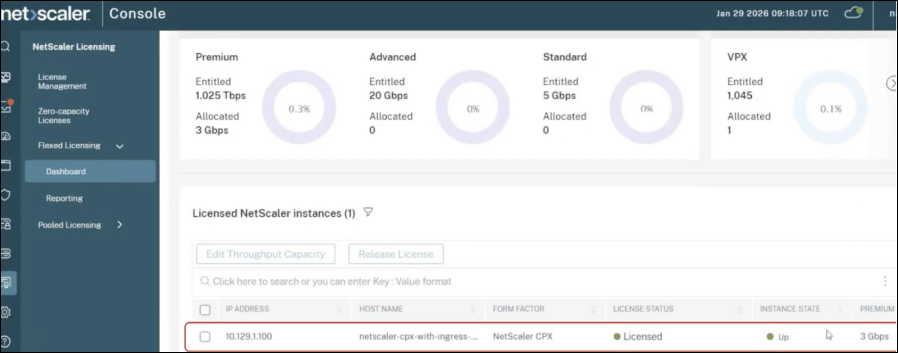
After successful NetScaler CPX licensing, NetScaler CPX instances start showing up in the NetScaler Console on-prem or service dashboard.
-
Troubleshooting NetScaler CPX licensing issues
-
Verify NetScaler CPX licensing.
-
Log in to NetScaler CPX using
oc exec –it <CPX POD name> --bash, then runcli_script.sh "sh capacity"to view the actual bandwidth value. -
Run
cli_script.sh "sh license"to check theLicensing mode: LASvalue.
-
-
Locating licensed NetScaler CPX instances in NetScaler Console service or on-prem.
-
On the NetScaler Console service or on-prem GUI, navigate to NetScaler Licensing > Flexed licensing > Dashboard, and search for the NetScaler Console form factor.
-